







Non-accountant business owners and their staff can independently manage core financial tasks in TallyPrime without any accounting background. These tasks include raising GST invoices, recording payments and receipts, tracking outstanding customer balances, monitoring stock levels, and viewing financial reports like the daily sales summary.TallyPrime does the accounting in the background, so users only enter business details.
You do not need to become an accountant to run your books. You need to know your business. TallyPrime handles the accounting logic, and your CA can review the books and file what needs expert judgement.
This guide walks through each task and the features that make TallyPrime easy to learn.
Who this guide is for:
- Business owners who want to see their own numbers every day
- Billing staff, counter staff, and store managers who raise invoices
- Teams moving from Tally.ERP 9 or older Tally versions
- First-time users with basic computer or Excel skills
Why TallyPrime takes only 30 to 60 minutes to learn
A non-accountant can learn day-to-day usage of TallyPrime in 30 to 60 minutes because its keys, navigation, and actions are consistent across the whole software. The core daily tasks, such as creating invoices, recording purchases, accepting payments, and checking stock, can be learned within an hour. This is because once you learn a function on one screen, it works the same way everywhere else.
TallyPrime harmonised its buttons, inline actions, and keyboard shortcuts across masters, transactions, and reports. Function keys F2 to F10 behave the same way in every report.
Go To removes the need to memorise menus
Go To (Alt+G) is a search bar that opens any report, voucher, or master when you type part of its name. You do not need to know where a feature sits in a menu. Type "stock" and pick Stock Summary; type "sales" and pick the Sales voucher.
Go To also works in the middle of a task. You can check a customer's balance while raising an invoice, then return to the invoice without losing your entry.
SmartFind also helps you locate details inside masters and transactions just as quickly.
The keys a non-accountant needs on day one
A new non-accountant user can instantly start using TallyPrime from day one just by knowing few keyboard shortcuts:
|
Key |
What it does |
Where it works |
|
Alt+G |
Go To: open any report, voucher, or master by searching on Go To |
Every screen |
|
F8 |
Sales voucher (GST invoice) |
Vouchers |
|
F9 |
Purchase voucher (supplier bill) |
Vouchers |
|
F6 |
Receipt (money received from a customer) |
Vouchers |
|
F5 |
Payment (money paid to a supplier or for expenses) |
Vouchers |
|
Ctrl+A |
Accept and save |
Every voucher and master |
|
Esc |
Go back one screen |
Every screen |
|
Alt+P |
Print the current invoice or report |
Vouchers and reports |
|
F2 |
Change the date |
Vouchers and reports |
|
Alt+C |
Create a missing customer item, or ledger on the spot |
Inside any voucher |
Navigation feels familiar to anyone who uses Excel. Tab or Enter moves to the next field, Esc goes back, and arrow keys move through lists. The mouse works too, for users who prefer clicking, but working with keyboard shortcuts saves more time.
How to raise a GST invoice in TallyPrime
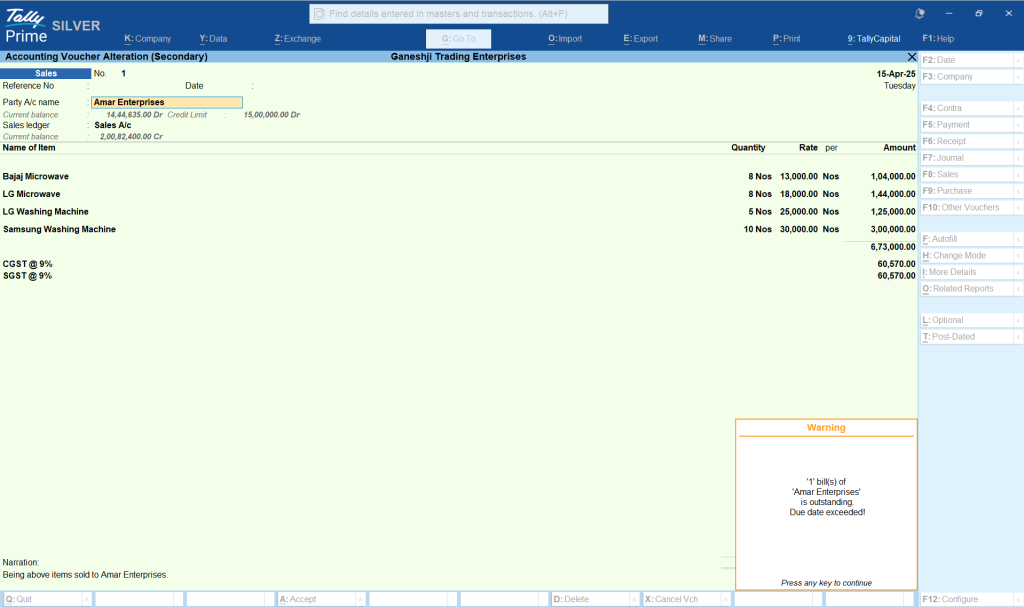
Raising a GST invoice in TallyPrime takes one key (F8) and a few fields: customer, items, and quantities. TallyPrime reads the customer's state and your item's GST rate, then applies CGST and SGST or IGST automatically. You never choose a tax ledger or work out the tax yourself.
Follow the below steps to raise a GST invoice in TallyPrime:
- Press Alt+G, type Sales, and press Enter. From the vouchers screen, you can also press F8.
- Select the customer. If the customer is new, press Alt+C to create them without leaving the invoice.
- Select each item and enter the quantity and rate.
- Check the GST that TallyPrime has added below the items.
- Press Ctrl+A to save, then Alt+P to print or share the invoice.
Features that make invoicing easy
-
- Automatic GST calculation: the correct tax type and rate come from the customer and item details set up once
- GSTIN-based customer creation: enter a customer's GSTIN and TallyPrime fetches their details, so names and addresses are correct
- Docs by Ira: upload invoices in bulk and create review-ready voucher entries with exceptions highlighted for review
- Connected e-invoice and e-way bill: generate them from the saved invoice, singly or in bulk, without opening another portal
- WhatsApp and e-mail sharing: send the invoice to the customer as soon as you save it
- Duplicate a voucher (Alt+2): repeat a similar invoice for a regular customer in seconds
Once saved, the invoice already counts toward your GSTR-1. There is no separate data entry for returns.
How to record payments and receipts
TallyPrime records money coming in as a Receipt (F6) and money going out as a Payment (F5). You only answer two questions: who paid or was paid, and how much. TallyPrime posts the entry to the right accounts and updates the party's balance at once.
To record a customer payment (Receipt):
- Press Alt+G, type Receipt, and press Enter, or press F6 from the vouchers screen
- Choose the bank or cash account where the money arrived
- Select the customer and enter the amount
- Pick the invoice the customer is paying against, so the bill shows as settled
- Press Ctrl+A to save
To record a supplier or expense payment (Payment):
The steps are mostly similar::
- Press F5
- Choose the bank or cash account
- Select the supplier or expense
- Enter the amount, and save
Learning one voucher teaches you the other, because the screens follow the same pattern.
Here are a few situations and the shortcut keys you can use:
|
Situation |
Voucher |
Key |
|
Customer pays an invoice |
Receipt |
F6 |
|
You pay a supplier bill |
Payment |
F5 |
|
You pay rent, salary, or utilities |
Payment |
F5 |
|
You deposit cash into the bank |
Contra |
F4 |
All you need to learn is the shortcut keys. The accounting happens in the background without you having to think of it.
Connected Banking in TallyPrime also lets you see real-time bank balances and statements inside TallyPrime. That makes reconciliation a matching task rather than an accounting one.
How to enter purchase bills with Docs by Ira
Docs by Ira is an AI-powered invoice processing capability in TallyPrime that reads supplier bills, turns them into draft purchase vouchers, and highlights exceptions and mismatches for review.. It removes the most repetitive bookkeeping task: typing bills line by line. Nothing posts to your books until you review and approve it. You can also save time by uploading bulk invoices with Docs by Ira.
Here’s how you can upload invoices in Tallyprime:
- Upload or scan the bill from the TallyIra mobile app or from TallyPrime on your desktop
- Docs by Ira extracts the party name, invoice number, date, amounts, GST, and line items
- Review the draft. Docs by Ira highlights any field with an error in red, and shows Ready to Convert when the draft is clean.
- Approve the draft to turn it into a regular voucher in TallyPrime with a single click.
Why this helps non-accountants
- No accounting decisions: Ira matches the bill to your existing supplier and item masters.
- It learns from corrections: fix a mapping once and Docs by Ira remembers it next time.
- Bulk processing: upload several bills at once, including ZIP files, and get draft vouchers in one batch.
- Duplicate alerts: Docs by Ira flags duplicate invoices that may have already been entered.
- Common formats: PDF, JPEG, JPG, and ZIP.
Learn more about Tally Ira’s AI-Powered Invoice Processor That Keeps You in Control
How to track outstanding customer balances
TallyPrime tracks every unpaid invoice automatically, so you can see who owes you money without building a list. Each Receipt you record against an invoice reduces that customer's balance. The Bills Receivable report shows what is pending and how long it has been due.
To track the outstanding dues and ageing:
- Press Alt+G and type Bills Receivable (or Outstandings).
- View every pending invoice with its customer, amount, and due date.
- Press Enter on a customer to see their individual bills.
- Use F2 or Alt+F2 to change the date or period.
Ways to follow up faster
- Dashboard tile: the Receivables/Payables tile in TallyPrime’s Dashboard shows total receivables and the amount already past due on one screen.
- WhatsApp reminders: send ledger statements and reminder letters in bulk to many customers at once.
- Credit visibility while billing: use Go To to check a customer's balance before you raise their next invoice.
- Browser access: view Bills Receivable from a web browser when you are away from the office.
Overdue receivables are the number most owners should check daily. A short morning look at this report shows which calls to make first.
How to monitor stock levels
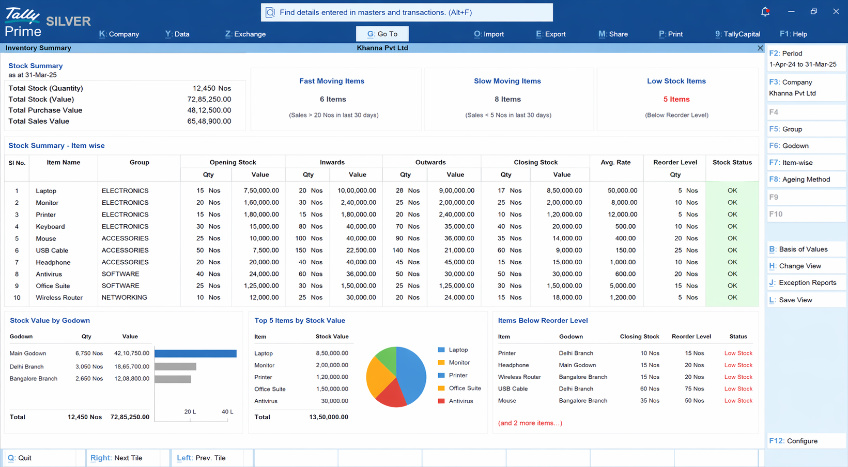
TallyPrime updates stock automatically every time you save a sales or purchase voucher. Sales reduce stock and purchases add to it. You do not need to post separate inventory entries for routine buying and selling.
To monitor stock, you can just:
- Press Alt+G and type Stock Summary.
- See the quantity, rate, and value of every item you hold.
- Press Enter on a stock group to see the items inside it.
- Press Enter on an item to see each movement in and out.
Here’s a small table to answer the most common questions on where to find what.
|
Question |
Where to look in TallyPrime |
|
How much of each item do I have? |
Stock Summary |
|
What is the full history of one item? |
Stock Item drill-down from Stock Summary |
|
Which items sell the most? |
Top Stock Items tile on the Dashboard |
|
Can I check stock while billing? |
Alt+G from inside the invoice, then return |
The Stock Summary helps you spot low stock, overstocked items, and slow-moving inventory before they hurt cash flow. Store managers can check it in seconds, and owners can view it from a browser on any device.
How to view your daily sales summary
TallyPrime gives you three ways to see the day's sales: the Dashboard, the Sales Register, and the Day Book. You can press Alt+G to search for these. None of them needs any accounting knowledge to read.
|
Report |
What it shows |
Best for |
|
Dashboard |
Sales trend, cash and bank balances, receivables and payables on one screen |
A quick morning check |
|
Sales Register |
Total sales by day or month, with every invoice behind each total |
Seeing how sales are trending |
|
Day Book |
Every transaction recorded on a chosen date |
Checking what your staff entered today |
Set up the Dashboard
The Dashboard opens with tiles such as Sales Trend, Cash/Bank Accounts, Receivables/Payables, and Top Groups/Ledgers.
- Press Alt+A to add tiles for sales, stock, or cash flow.
- Press Ctrl+H to switch to a ready-made Sales Dashboard view.
- You can set TallyPrime to open directly on the Dashboard.
- You can also restrict sensitive tiles by user role, so staff see only what they need.
- Every figure on the Dashboard links to its source report. Select a tile to drill down to the invoices behind the number.
How to file GST returns from TallyPrime
TallyPrime prepares GSTR-1 and GSTR-3B automatically from the invoices and bills you have already recorded. You do not re-enter data or sort invoices by hand. With connected GST, you can file GSTR-1 and, GSTR-3B directly from TallyPrime, without logging in to the GST portal.
Follow these steps to file GSTR from TallyPrime:
- Press Alt+G and type GSTR-1.
- Review the return. TallyPrime groups invoices into the right tables, such as B2B and B2C.
- Fix any transaction TallyPrime flags as incomplete or mismatched. Each flag links to the voucher that needs attention.
- Upload the return to the GST portal from inside TallyPrime.
- File and sign GSTR-1 using DSC or EVC.
- Repeat the review and upload for GSTR-3B.
Connected GST features that reduce errors
- GSTR-2A and GSTR-2B reconciliation: download them and let TallyPrime match them against your purchase records, highlighting mismatches.
- Party GST status check: enter a supplier's GSTIN to see their filing status before you rely on their input tax credit.
- Offline option: export returns in JSON or Excel format if you prefer to file on the portal yourself.
Where your CA still adds value
Your staff can record transactions and prepare returns, and your CA can review them before filing. Bring in your accountant for input tax credit decisions, mismatches you cannot explain, amendments, the annual return, and notices.
TallyPrime’s advanced capabilities make that review faster, because your CA sees clean and complete data.
Moving from Tally.ERP 9 or an older Tally version
Users moving from Tally.ERP 9 keep the voucher keys they already know, so the switch to TallyPrime takes little relearning.
For example, F4 to F9 still open the same voucher types.
The main change is that Go To replaces long menu paths, which makes TallyPrime easier and quicker.
|
What you did in older versions |
What you can do now in TallyPrime |
|
Walk through menus to reach a report |
Press Alt+G and type the report's name |
|
Close your work to check something else |
Use Go To mid-task, then return to the open voucher |
|
Learn different shortcuts on different screens |
Use the same keys across masters, vouchers, and reports |
|
Remember where a setting lives |
Use F11 for company features and F12 to configure the current screen |
|
Search records manually |
Use SmartFind to locate details in masters and transactions |
TallyPrime lets you migrate from any Tally.ERP 9 or TallyPrime release to the latest release. When migrating from Tally.ERP 9, you can pause and resume without restarting. Your existing data, ledgers, and items come with you.
TallyPrime features that help non-accountants
Each daily task in TallyPrime is supported by a specific feature that removes the need for accounting knowledge. The table below maps each task to the feature that makes it easy.
|
Daily task |
TallyPrime feature |
Why no accounting knowledge is needed |
|
Find any screen |
Go To (Alt+G), SmartFind |
Type a name instead of learning menus |
|
Raise a GST invoice |
Sales voucher (F8), auto GST, GSTIN fetch |
Tax type and rate are applied automatically |
|
Issue e-invoices and e-way bills |
Connected e-invoice and e-way bill |
Generated from the saved invoice |
|
Enter supplier bills |
Docs by Ira |
AI creates draft vouchers for review |
|
Record money in and out |
Receipt (F6), Payment (F5) |
Pick the party and amount; posting is automatic |
|
Track who owes you |
Bills Receivable, Receivables tile |
Unpaid invoices are tracked automatically |
|
Send reminders and invoices |
WhatsApp and e-mail sharing |
Share directly from TallyPrime |
|
Check stock |
Stock summary |
Updated with every sale and purchase |
|
See daily sales |
Dashboard, Sales Register, Day Book |
Plain business figures on one screen |
|
File GST returns |
Connected GSTR-1 and GSTR-3B |
Returns are built from recorded invoices |
|
Reconcile purchases |
GSTR-2A and 2B reconciliation |
Mismatches are highlighted for you |
|
Learn once, use everywhere |
Consistent keys and actions |
The same key does the same job on every screen |
Conclusion: you can run your books without accounting knowledge
Non-accountants can manage basic bookkeeping and GST returns in TallyPrime independently, from the first invoice to the GSTR-1 upload. A business owner or staff member can learn day-to-day usage in 30 to 60 minutes, because the same keys, navigation, and actions work everywhere.
Go To, automatic GST, Docs by Ira, and connected GST remove the accounting decisions, leaving only business decisions.
Start with three habits:
- raise every sale with F8
- record every receipt with F6
- open the Dashboard each morning
Your accountant can then focus on review and advice rather than data entry.