






TallyPrime handles UPI payments by generating unique QR codes for specific invoices and utilizing its enhanced "Bank Reconciliation" engine to match incoming bank credits to the correct party ledgers.
In my 20 years of experience consulting for retail, manufacturing, and e-commerce sectors, I’ve seen countless business owners drown in a sea of "₹500" UPI notifications. Without a clear reference, you don't know which customer paid which bill. In the Revenue Leakage framework, this falls under "Class 7: Unexplained Variance." If left unaddressed, these unidentified credits transform into "Reconciliation Debt", a backlog of transactions that obscures your true cash position and creates massive headaches during statutory audits.
This guide will show you how to move from "Accounting Debt" to real-time clarity by automating the collection and linking process.
How do I set up UPI payments in TallyPrime?
Setting up digital collections is a one-time process. Note that a valid Tally Software Services (TSS) subscription and a TallyPrime license are required to use these digital features.
- Enable features: Go to F11 (Features). Set "Enable payment request to share payment link or QR code" to Yes.
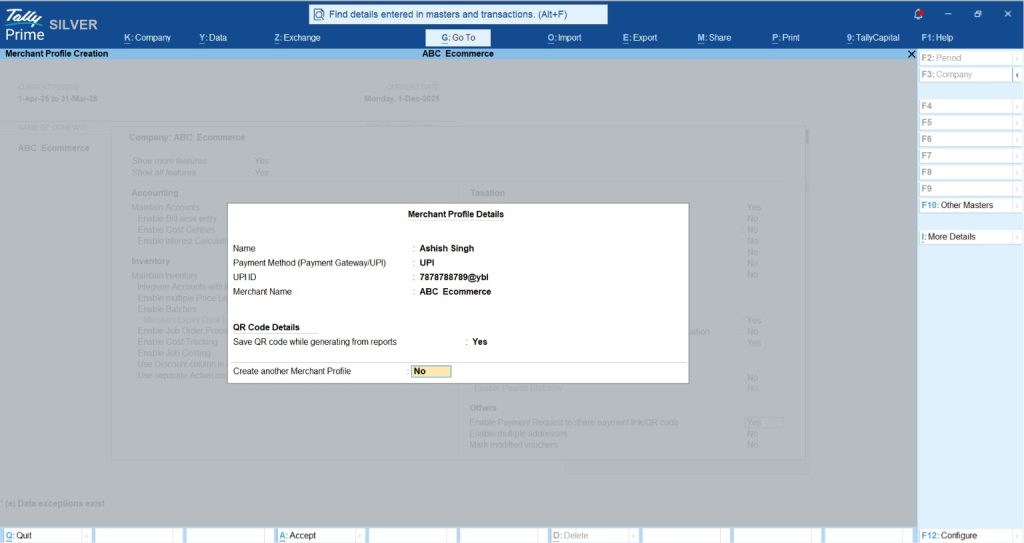
- Create merchant profile: In the Merchant Profile screen, enter your User Name, select UPI as the method, and enter your registered UPI ID and Merchant Name.
- Fraud prevention: A senior consultant’s tip - use Tally’s security control levels to "restrict altering the UPI ID" in the Merchant Profile. This prevents unauthorized users from diverting payments to a different ID.
- Advanced config: Press F12 within the profile to enable "Save QR Code while generating from reports." This ensures that when you generate a code for a voucher, that code is permanently stored with the transaction record.
Can I put a QR code directly on my invoices?
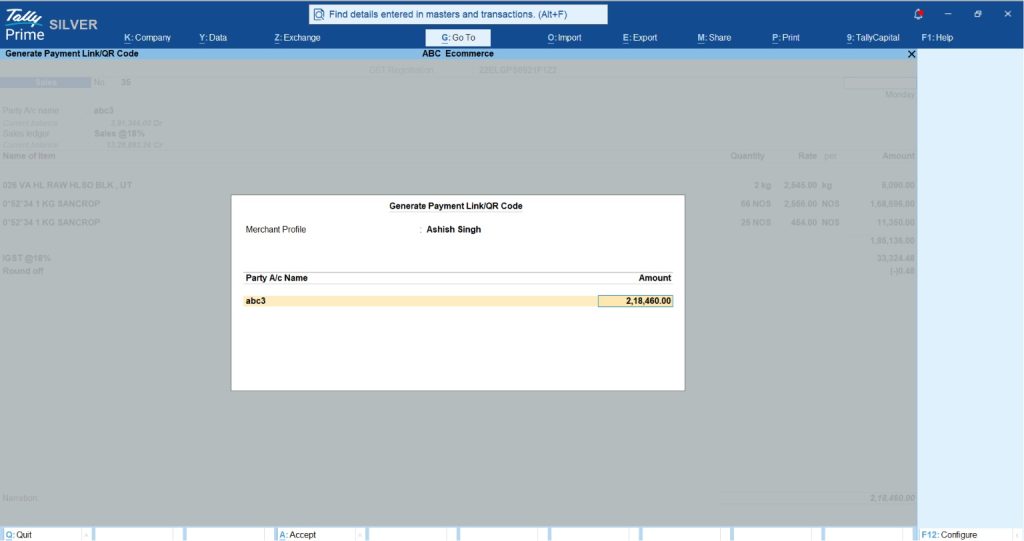
Absolutely. Adding a QR code is the fastest way to reduce your Days Sales Outstanding (DSO). You can generate a QR code for a specific voucher using the Alt+Z (Generate Payment) command.
To ensure the QR code appears on your physical or PDF invoices:
- Go to Ctrl+P (Print) > Configure.
- Search for Method of payment request and select QR Code.
- Compliance Note: For service sectors, ensure your invoices still carry the correct SAC Codes for GST compliance, as Tally won't automatically fix missing statutory data just because a QR code is present.
First-hand Insight: "In my work with pharmacies and retail shops, adding this QR code reduced their payment cycle significantly. When matching a stockist's bulk payment against multiple medicine batches, having the customer pay 'on the spot' during delivery removes the friction of manual bank entry later."
How does Tally "auto-link" the payment to the party ledger?
The real "magic" happens during reconciliation. TallyPrime uses "Import Bank Statement" and "Connected Banking" to bridge the gap between your bank and your books.
The three-step reconciliation workflow:
- Import: Bring in your bank statement. You can manually import a downloaded CSV or Excel file (Alt+O > Bank Statement) or use Connected Banking to fetch data directly via API for supported banks like Axis, Kotak, ICICI, or SBI.
- Identify: Open the Imported Bank Data report. TallyPrime identifies "Potential Matches" by comparing amounts and references. Pro Tip: Press Alt+S in this report to view Tally's specific match suggestions.
- Link:
- Use F8 (Reconcile) to link a confirmed match.
- If the bank credit exists but you haven't recorded the voucher yet, use F7 (Create Voucher) to instantly generate the receipt voucher based on the bank data.
What if you have multiple invoices for one party
TallyPrime handles complex scenarios where a customer pays for a consolidated balance. By selecting multiple vouchers in the Ledger Outstandings report, you can generate a single QR code for the total.
- Partial payments & TDS warning: Customers often pay a portion of the balance. While you can change the amount in the "Generate Payment Link/QR Code" screen, be careful.
- The consultant’s trap: Before assuming a mismatch is a "short payment," check if the client has deducted TDS under Section 194J (10%) or 194C (1% or 2%). A ₹90,000 credit against a ₹1,00,000 professional services invoice isn't a partial payment, it's a TDS-net payment. You must record the TDS receivable to ensure your Form 26AS reconciles later.
Example: The "retail rush" scenario
Imagine a Manufacturing Dealership receiving 50 UPI payments a day for various spare parts.
- Before: At day-end, the accountant manually compares bank SMS notifications against the sales log, trying to guess which ₹1,200 payment belongs to which customer. This leads to "unexplained leakage" and a growing suspense account.
- After: The accountant imports the bank statement. Tally identifies exact matches for 45 payments. The accountant hits Alt+S to see potential matches for the remaining 5. For a new customer who paid via QR before the invoice was saved, the accountant hits F7 to auto-create the receipt. What used to take three hours is resolved in fifteen minutes.
Practical takeaways & implementation checklist
- Register: Ensure you are registered with a UPI provider or a Payment Gateway like PayU or Razorpay.
- Reconcile Date: Set the "Reconciliation Beginning Date" in your bank ledger configuration (Gateway of Tally > Alter > Ledger).
- Voucher Settings: Go to Alter Voucher Type > Sales and enable "Generate payment link/QR code after saving voucher."
- WhatsApp Integration: Train staff to use Alt+M to share invoices via WhatsApp.
Link: How to set up WhatsApp for Business in TallyPrime
"Reconciliation isn't just about matching numbers; it's about recovering the time you usually waste on 'who paid what' and stopping revenue leakage before it becomes a permanent loss."
Conclusion
To keep your books audit-ready, use the Basis of Value feature in reports like Ledger Outstandings. This allows you to filter and track exactly which invoices are "Pending QR Generation," ensuring no bill goes out without a digital payment option. Moving from "Accounting Debt" to "Real-time Clarity" ensures that your cash flow statement genuinely matches your actual bank movements.