






TallyPrime gives business owners a practical mobile experience for staying on top of their books while away from the office. Business owners can view TallyPrime reports such as Profit & Loss A/c, Balance Sheet, Trial Balance, Day Book, ledgers, outstanding receivables and payables, and inventory reports on their phone using Reports in Browser (TRiB). It works through any mobile web browser and a Tally.NET ID. It needs an active TSS subscription and an internet connection on the computer where TallyPrime is running. No app installation is needed.
Owners with limited to no staff can also upload invoices in bulk from their phone through the Docs by Ira app, and record entries in TallyPrime.
The approach is simple. TallyPrime continues to run on your office computer, where your company data is stored. Tally.NET services connect your phone to it, so the report you open on your phone is the same report you would see on the desktop, reflecting the latest entries.
This guide details what you can check on your phone, how the setup works, who can see what, how it compares with the other remote options, and how owners in different businesses use it day to day.
How TallyPrime offers a mobile experience for business owners?
TallyPrime offers several ways to use the business management software from your phone, each suited to a different need. Here are several ways you can use TallyPrime on your mobile:
|
Mobile Experience |
What it’s best for |
What you can do |
|
TallyPrime Reports in Browser |
Checking the business reports from anywhere |
View (and download) reports on a phone, tablet or desktop browser |
|
TallyPrime Cloud Access |
Working in TallyPrime from multiple locations |
Use TallyPrime in the cloud |
|
Getting invoices into TallyPrime quickly |
Upload invoices, including bulk uploads, and turn them into accounting-ready entries |
For owners whose main need is visibility, Reports in Browser is the everyday tool. It is included with an active TSS subscription, which most TallyPrime users already maintain for updates and support.
What you can check in TallyPrime from your phone
TallyPrime's mobile browser view organises reports into categories, the same way you think about the business: financial position, money owed and due, daily transactions, and stock. The sections below cover each group, what it tells you, and when owners typically open it.
Financial reports: Profit & loss a/c, balance sheet and trial balance
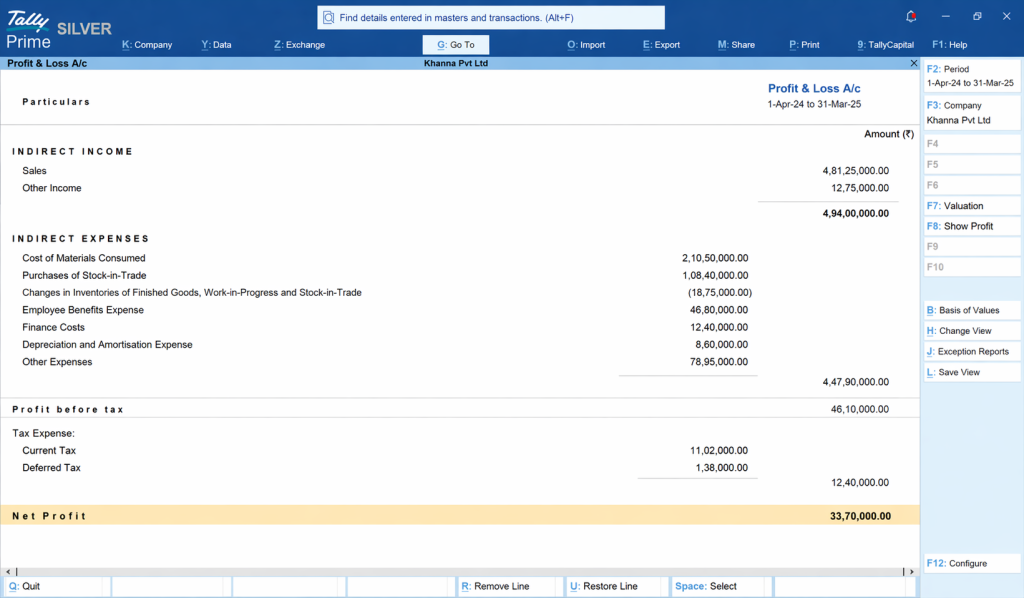
Financial reports show how the business is performing and where it stands.
- Profit & Loss A/c reflects income, expenses and net profit for the period you choose. Owners use it to see whether the month is on track before a review meeting, or to compare performance against an earlier period
- Balance Sheet shows assets, liabilities and capital as on a date. It is useful before discussions with a banker, investor or partner, where current figures carry weight
- Trial Balance lists every ledger balance, which makes it a quick check that the books are in order. Owners and their CAs use it as a starting point during period-end reviews
Business owners who check these reports regularly notice trends early, such as a rising expense head or a shrinking margin, and can act within the month.
Outstandings: Receivables and payables
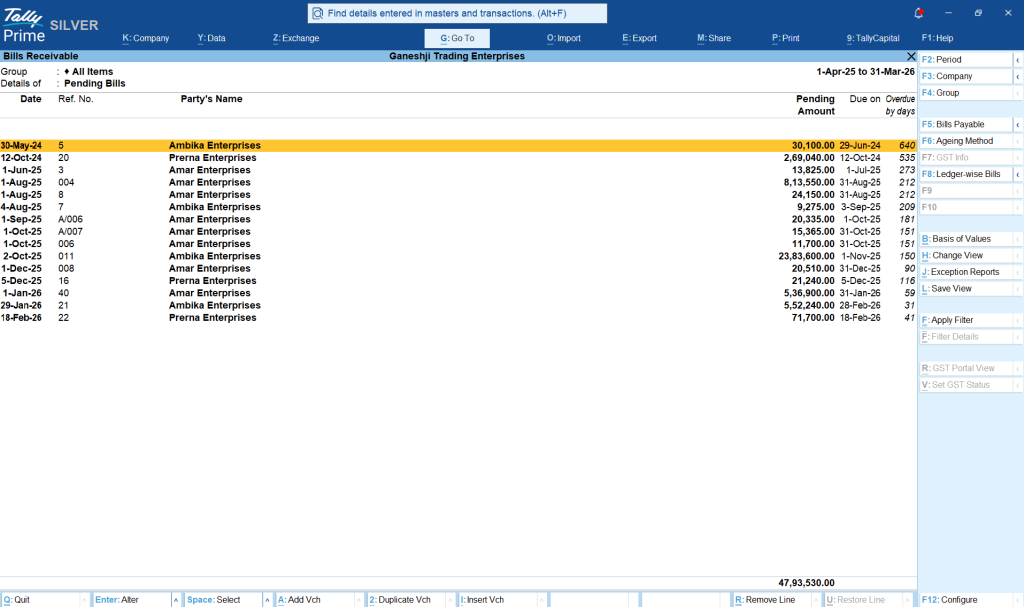
Outstanding reports track money that is yet to come in or go out.
- Receivables show what customers owe, party-wise and bill-wise. They also show which bills are overdue and for how many days. A collections call backed by bill numbers, dates and amounts is far more effective than a general reminder
- Payables show what you owe suppliers and when each bill falls due. Owners use this to schedule payments, take advantage of payment terms, and maintain good supplier relationships
Together, receivables and payables give an owner a clear view of upcoming cash movement, which is what drives most day-to-day financial decisions.
Day book, ledgers and invoices
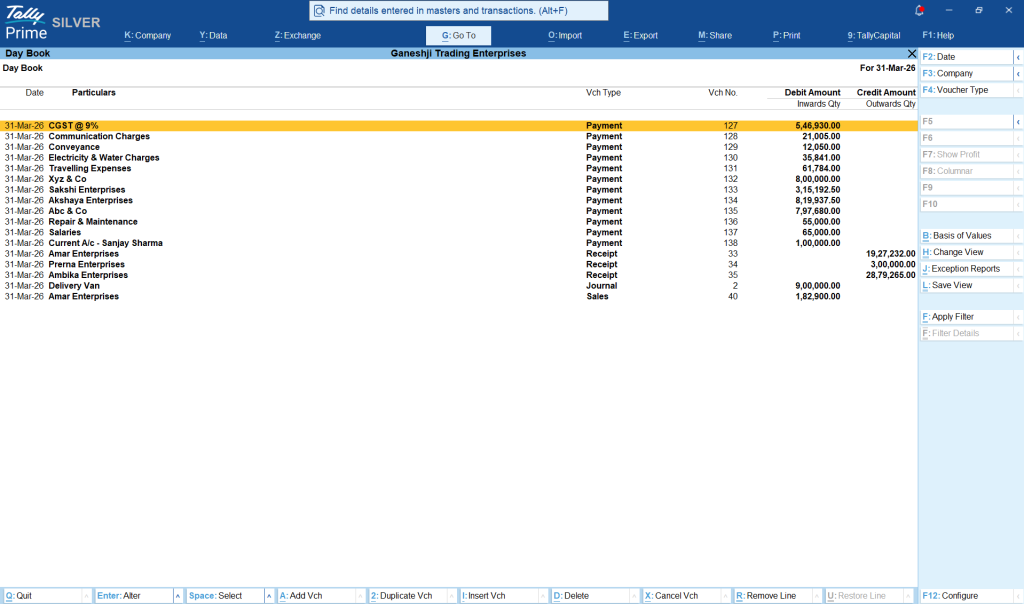
These reports let you go from a total to the transactions behind it.
- Day Book lists the vouchers recorded on a selected day: sales invoices, purchase invoices, receipts, payments, journals and more. Owners with several counters, branches or accountants use it to see what was recorded each day
- Party ledgers show every transaction with a customer or supplier and the running balance. If a customer says a payment has been made, the party ledger confirms it in seconds
- Bank and cash ledgers show the movement and closing balance in each account, which supports payment planning and reconciliation checks
- Invoices can be reviewed through the sales and purchase vouchers in the Day Book and registers, including the party, amount and date of each invoice raised or received
Inventory reports: Stock levels
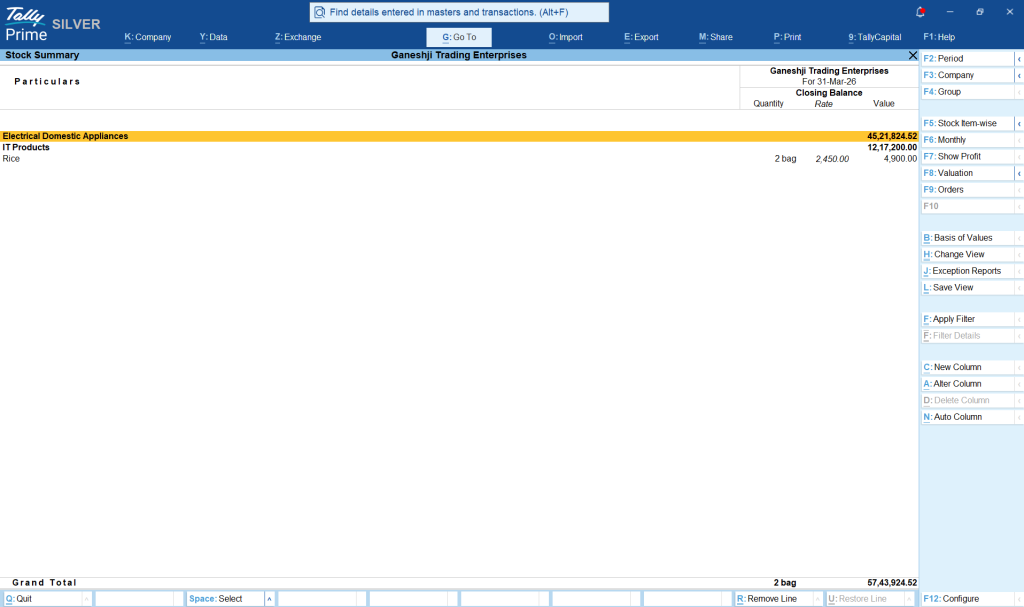
For traders, distributors, retailers and manufacturers, inventory reports answer availability questions.
- Stock Summary shows closing quantity and value for each stock item, so you know what is on hand and what it is worth
- Item-level stock views help identify fast-moving items that need reordering, and slow-moving stock that may need a promotional push
Owners often open these reports while on the road, when a customer or salesperson asks about availability and a quick, accurate answer can secure the order.
Read about the Simplified & Powerful Report Filters in TallyPrime
How does TallyPrime Reports in Browser work?
Reports in Browser follow a simple approach: Considering you are using TallyPrime offline and don’t use cloud access, here’s how TRiB works:
- TallyPrime runs on your computer: Your company data stays on the host computer where TallyPrime is installed
- Your company is connected to Tally.NET services: This is done from within TallyPrime, and it lets Tally.NET's secure infrastructure pass report requests to your software
- You log in with a Tally.NET ID: A Tally.NET ID is an email ID authorised to access your company remotely. Your account's email ID is already a valid Tally.NET ID, and you can add more
- The report is fetched and displayed: When you open a report on your phone, TallyPrime on your host computer supplies the data, and the browser displays it in a layout designed for small screens
How to open reports on your phone
- Open your mobile browser and go to the Tally Solutions website.
- Log in with your Tally.NET ID and password.
- On the Report Screen you will see the companies linked to your account.
- Select the company whose reports you want to view. The list shows whether each company is Connected or Offline.
- On the List of Reports page, choose a category, then tap the report. Common Reports are shown by default.
You can bookmark the page for one-tap access in future.
Watch this video to learn how to view TallyPrime reports in browser:
What you would need to set it up
- A valid TallyPrime licence: Silver or Gold
- An active TSS subscription: Reports in Browser is available with active TSS. The 7-day free trial licence, which is a Multi-User Gold licence with active TSS for seven days, also supports it
- Your company connected to Tally.NET services: this is done inside TallyPrime
- An internet connection on the host computer: so it can respond to report requests
- A Tally.NET ID for every person who will view reports: each person uses their own login
You can give browser access to multiple users as well from the Users and Passwords menu option under Company.
TallyPrime Reports in Browser (TRiB): Quick facts
|
Question |
Answer |
|
What devices does it work on? |
Any smartphone, tablet or desktop with a web browser |
|
Does it require any installation on mobile? |
No |
|
How to log in? |
With your Tally.NET ID and password on the Tally Solutions website |
|
What do I need on the office side? |
A valid TallyPrime licence (Silver, Gold or Tally Server 9), an active TSS subscription, an internet connection, and your company connected to Tally.NET services |
|
Is the data live? |
Yes, reports are fetched from your TallyPrime when you open them |
|
Can I control who sees which reports? |
Yes, through Tally.NET user roles and security levels |
|
Can I download a report? |
Yes, for users given the relevant access |
User access control and security: Who can see what?
Reports in Browser is built so that owners decide exactly who sees which reports.
- Roles: Tally.NET IDs can be assigned a security level, such as Tally.NET Owner, Tally.NET User or Tally.NET Auditor. Each role carries different rights
- Report-level permissions: Access can be set per report:
- Display access allows a user to view a report in the browser
- Print access allows a user to download a report
- Full access allows both viewing and downloading
- Authorising users: From within TallyPrime, in the Users and Passwords section of the Company menu (Alt + K), add the Tally.NET ID and set Allow Browser Access to Yes. Security levels let you limit each person to the reports they need
- One login, multiple companies: The same email ID can be authorised across different companies, so an owner with multiple businesses uses a single Tally.NET ID to view all of them
A typical setup gives the owner full access, access to outstandings and ledgers to the accountant, and an auditor role for financial reports to the company’s CA.
Reports in Browser and TallyPrime Cloud Access: Choosing the right option
Each option answers a different need, and many businesses use more than one.
|
Reports in Browser |
TallyPrime Cloud Access |
|
|
Purpose |
View reports from anywhere |
Work in TallyPrime in the cloud from multiple locations |
|
Typical user |
Owners, accountants, CAs |
Teams collaborating across locations |
|
Mobile experience |
Yes, through the browser |
Yes |
|
Data entry |
Reports can only be viewed |
Entries can be recorded |
|
Requirement |
Valid license, active TSS, company connected to Tally.NET |
Tally Prime Cloud Access subscription |
An owner who mainly reviews the business can start with Reports in Browser, and add TallyPrime Cloud Access later as the team's remote working needs grow.
How business owners get invoices into TallyPrime from their phone
You can also use your mobile to upload multiple invoices to TallyPrime. Docs by Ira is an AI-powered invoice processing app that captures invoice data for TallyPrime. It supports owners and teams on the go in several ways:
- Invoice processing: Upload an invoice, and the data is extracted and converted into accounting-ready entries
- Checks before posting: It flags mismatched GST fields and duplicate invoice numbers before the entry is posted
- Handwritten invoices: It reads handwritten invoices as well as printed ones
- Bulk upload: Many invoices can be uploaded together
Reports in Browser covers what you can see, and Docs by Ira covers how invoices get in. Together they let an owner receive an invoice, have it processed, and later check its effect in the ledgers and outstandings.
How different business owners use mobile reports
- Retailer: A retailer usually opens the Day Book each evening to review the day's sales vouchers and checks Stock Summary before placing supplier orders
- Distributor: A distributor would review Receivables by party before visiting customers and check Stock Summary while taking orders in the field
- Manufacturer: A business owner in manufacturing usually monitors Payables to plan supplier payments and checks Inventory Reports to keep raw materials and finished goods at the right levels
- Service professional: A service professional uses Party Ledgers and Receivables to follow up on client invoices and checks Profit & Loss A/c at month-end
- Multi-business owner: A business owner with multiple branches or businesses usually uses one Tally.NET ID to move across companies, comparing Profit & Loss A/c and Balance Sheet across businesses
What reporting routine you should follow as a business owners
|
Frequency |
Reports |
What to look for |
|
Daily |
Day Book, Receivables, Stock Summary |
Today's vouchers, new overdue bills, items running low |
|
Weekly |
Payables, Party ledgers, Bank ledgers |
Upcoming payments, customers to follow up, account balances |
|
Monthly |
Profit & Loss A/c, Balance Sheet, Trial Balance |
Profit trend, financial position, books ready for review |
A routine of five minutes a day and a longer monthly review is enough for most owners to stay in control of the business.
Tips to get the most from mobile reports in TallyPrime
- Keep entries current: Reports show what has been recorded, so timely voucher entry makes the mobile view more useful
- Renew TSS on time: An active TSS keeps browser access running
- Assign each person their own Tally.NET ID: Individual logins keep access clear and manageable
- Protect your credentials: Treat your Tally.NET ID and password like a banking login.
- Use roles for your CA: An auditor login lets your CA review reports without asking you to forward them
Conclusion
TallyPrime gives business owners a meaningful mobile experience built around what they need most on the go. Through TallyPrime Reports in Browser, owners can view Profit & Loss A/c, Balance Sheet, Trial Balance, Day Book, ledgers, receivables, payables and inventory reports on any phone browser, with live data from their own TallyPrime. TallyPrime Cloud Access and the Docs by Ira app extend this for owners who want to record transactions, work from multiple locations, or capture invoices from a phone. With an active TSS subscription, a connected company and a Tally.NET ID, an owner can review the business from anywhere.