In my 20 years of accounting experience across retail, manufacturing, pharmacy, automobile dealerships, construction, e-commerce, and service industries, I have seen businesses struggle with a common challenge: employees often find accounting software complicated when they are unfamiliar with its features.
TallyPrime offers several capabilities, including accounting, invoicing, inventory management, GST compliance, banking, and financial reporting. These features are valuable for businesses, but not every employee needs to use all of them.
For example, a billing clerk may only need to create sales invoices, while a warehouse employee may need to record stock movements. Giving both employees unrestricted access to accounting masters, financial reports, and other transactions is unnecessary. This is where Role-Based Access in TallyPrime becomes useful.
Using Security Control, businesses can assign user permissions based on responsibilities. Employees receive access to the features they need, while sensitive information and important accounting activities remain protected. The result is a more controlled and manageable accounting environment.
Your TallyPrime Interface Will Not Overwhelm Your Team
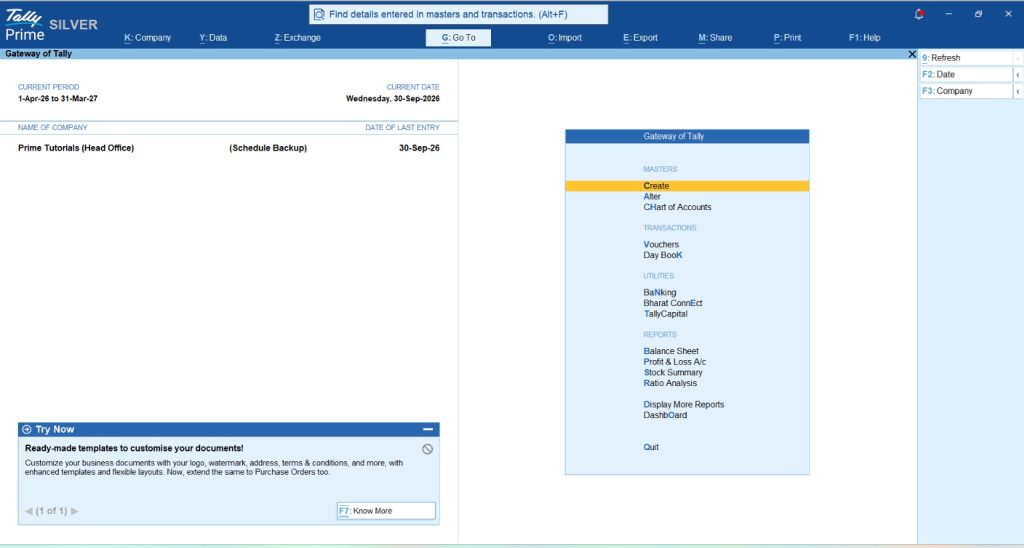
TallyPrime provides access to several accounting and business management features through its Gateway of Tally, menus, and navigation options. Depending on the enabled features and company configuration, users can work with:
- Masters: Ledgers, Groups, Stock Items, Stock Groups, and other accounting or inventory masters.
- Transactions: Sales, Purchase, Payment, Receipt, Journal, and inventory vouchers.
- Reports: Balance Sheet, Profit & Loss A/c, Trial Balance, Stock Summary, Day Book, and GST reports.
- Other Features: Banking, Import and Export, Company Management, and additional business operations.
These capabilities are essential for managing a business, but employees working in specific departments may not require access to all of them.
For example, a billing employee generally does not need permission to alter financial masters or access sensitive profitability reports. Similarly, a warehouse employee may need to record inventory movements without being allowed to modify accounting vouchers. Providing unrestricted access can create unnecessary risks, particularly when employees are still learning the software.
How Role-Based Access Helps
Role-Based Access allows businesses to define which activities employees can perform. An administrator can allow or restrict permissions for:
- Creating and altering vouchers
- Viewing accounting reports
- Creating or changing masters
- Deleting transactions
- Entering or altering back-dated vouchers
- Accessing specific accounting or inventory features
- Modifying certain pricing and tax-related settings
This helps employees concentrate on their assigned responsibilities while protecting sensitive business information. However, Security Control should not be confused with a fully customisable screen designer. It primarily manages access permissions rather than redesigning the entire TallyPrime interface.
How Do You Enable Security Control in TallyPrime?
Enabling Security Control is straightforward and can be done while creating a company or modifying an existing one.
Step 1: Open Company Alteration
- Open the required company in TallyPrime.
- Press Alt+K (Company) → Alter.
- Select the company if required.
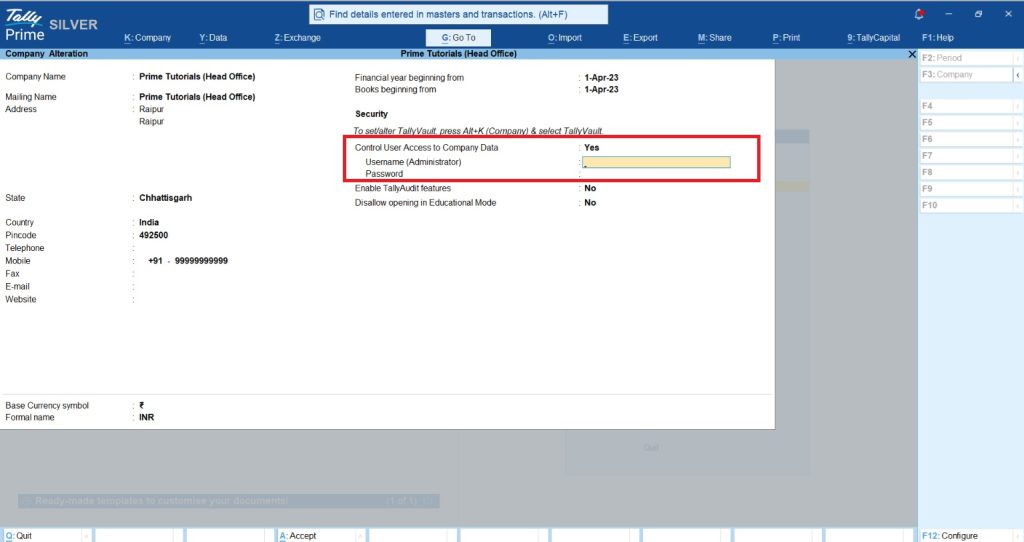
Step 2: Enable User Access Control
- In the Company Alteration screen, locate the security settings.
- Set Control User Access to Company Data to Yes.
- If the option is not visible, press F12 (Configure) and enable Use User Access Control.
Step 3: Create Administrator Credentials
- Enter the Administrator Username and Password.
- The administrator will have the authority to manage users and configure their access permissions.
- Use a strong password and keep the administrator credentials secure.
Step 4: Save the Settings
- Press Ctrl+A to save the company settings.
- Once Security Control is enabled, TallyPrime provides options for managing users and their security levels.
How Do You Create Users and Assign Roles?
After enabling Security Control, the next step is to create users and assign appropriate permissions.
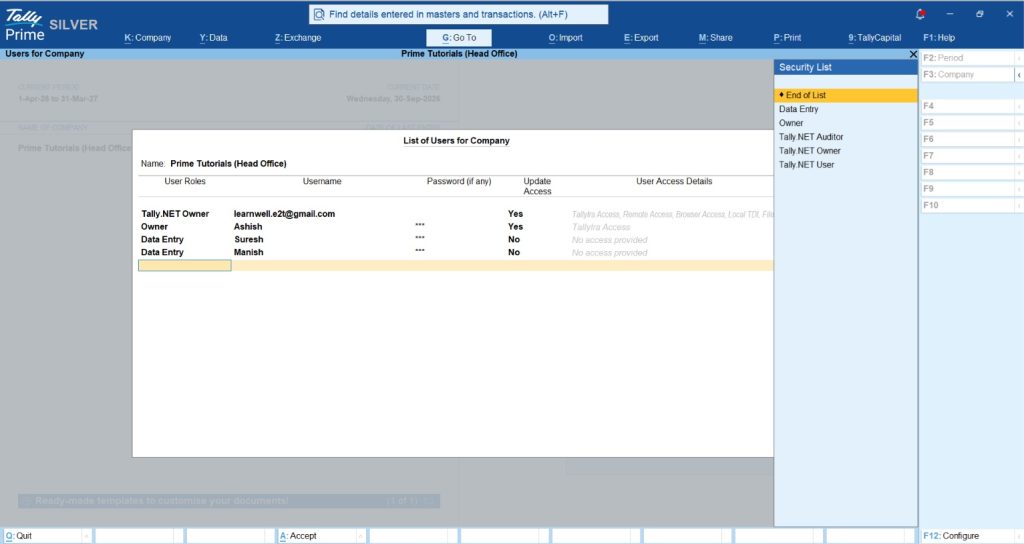
- Step 1: Open Users and Passwords: Press Alt+K (Company) → Users and Passwords
- Step 2: Select a User Role: Choose an appropriate user role or security level based on the employee's responsibilities. TallyPrime provides predefined roles and allows businesses to configure additional security levels where required.
- Step 3: Enter User Credentials: Enter the employee's Username and Password. For better accountability, employees should use separate login credentials instead of sharing a common account.
- Step 4: Configure Additional Permissions: If required, configure options such as remote access, browser access, and other available user settings.
- Step 5: Save the User: Press Ctrl+A to save the details. The employee can now access the company using the assigned credentials and permissions.
How Can You Configure Different Security Levels?
Creating users is only one part of Role-Based Access. Businesses should also define what each role can do. To configure security permissions,
Press: Alt+K (Company) → User Roles
Select the required security level and configure the permissions.
TallyPrime allows administrators to define access through the Disallow the Following Facilities and Allow the Following Facilities sections.
For example, businesses can restrict full access to vouchers while allowing users to create or alter permitted transactions. Similarly, a user may be allowed to view specific reports without having permission to modify accounting data.
Common Permission Options
|
Permission |
Example |
|
Full Access |
Create, alter, and perform other permitted activities |
|
Create/Alter |
Create or modify permitted vouchers |
|
Display |
View permitted records without editing |
|
Display/Print |
View and print specified reports |
|
Back-Dated Voucher Control |
Restrict transactions outside the allowed period |
|
Master Access Control |
Restrict creation or alteration of accounting masters |
|
Report Access |
Allow or restrict access to selected financial reports |
These permissions can be configured according to business requirements. The exact available controls depend on the selected security level and the type of activity.

What Does Role-Based Access Look Like in Real Business Operations?
Role-Based Access becomes particularly useful when different employees perform different activities within the same company.
1. Billing Clerk or Cashier
In a retail shop, the billing employee primarily handles customer invoices. The business may allow this employee to create sales vouchers while restricting access to important financial reports and accounting master alterations. This helps prevent unauthorised changes to accounting data.
2. Storekeeper or Warehouse Manager
A storekeeper may need access to stock items, inventory reports, and permitted inventory vouchers. However, the employee may not need to access company profitability reports, banking transactions, or sensitive financial ledgers. Assigning the appropriate security level helps maintain better control over inventory operations.
3. Accountant
An accountant may need to create and alter purchase, payment, receipt, journal, and other accounting vouchers. The accountant may also require access to Trial Balance, Day Book, GST reports, and selected financial statements. However, businesses can still restrict sensitive activities such as deleting vouchers or modifying older transactions.
4. Business Owner or Administrator
The business owner or authorised administrator generally requires broader access. This may include company management, financial reporting, user administration, and other important accounting functions.
Example of Role-Based Permissions
|
Employee Role |
Permitted Features |
Restricted Activities |
|
Billing Clerk |
Sales voucher entry, selected customer information |
Financial reports, master alteration, unauthorised voucher deletion |
|
Storekeeper |
Permitted inventory vouchers, stock reports |
Sensitive financial reports, banking transactions |
|
Accountant |
Accounting vouchers, GST reports, selected masters |
User administration, unauthorised changes to older vouchers |
|
Business Owner |
Full accounting and management access |
As defined by company policy |
These are example configurations. Administrators must set the actual permissions according to their business requirements.
What Are the Business Benefits Beyond Security?
Role-Based Access is primarily a security feature, but it can also make daily accounting operations easier to manage.
1. Better Focus on Daily Responsibilities
Employees do not need unrestricted access to every accounting function. When permissions are configured according to their responsibilities, they can concentrate on relevant activities. This is particularly useful for new employees who are still learning TallyPrime.
2. Reduced Risk of Unauthorised Changes
An employee who only needs to create sales vouchers may not require permission to delete purchase entries or modify accounting masters. Restricting these activities helps protect accounting records from accidental or unauthorised changes.
3. Better Control Over Financial Information
Businesses often maintain sensitive information such as profitability reports, cash balances, purchase costs, and outstanding liabilities. Role-Based Access helps restrict access to selected financial reports based on employee responsibilities. This is useful for businesses with multiple departments.
4. Control Over Back-Dated Transactions
TallyPrime allows administrators to restrict the creation or alteration of back-dated vouchers. For example, a business may allow employees to enter current transactions while restricting changes to older accounting periods. Administrators can configure the permitted number of days or a cut-off date, depending on their requirements. This helps reduce unwanted changes to previously recorded transactions.
5. Better User Accountability
When every employee uses separate login credentials, businesses can identify which user performed an activity, where the relevant tracking features are enabled. For detailed records of changes, businesses can use TallyPrime's Edit Log functionality. For companies covered by applicable MCA audit-trail requirements, the permanently enabled TallyPrime Edit Log product provides the required non-disableable logging capability.
6. Role-Based Remote Access
TallyPrime also supports remote access through Tally.NET services, subject to the relevant setup and permissions. Businesses can authorise selected employees to access company data remotely according to their assigned security rights. This is useful when accountants, managers, or business owners need access from another location. Remote access requires the appropriate configuration, connectivity, credentials, and service availability.
Watch this video on how to restrict or disallow users from performing certain activities in TallyPrime
How Does Role-Based Access Work with Remote Access?
Businesses may need employees to access accounting data while working from different locations. For example, a business owner may want to check financial reports while travelling, or an accountant may need to work from another office. TallyPrime supports remote access through Tally.NET services.
Basic Remote Access Setup
- Enable Security Control for the company.
- Configure the relevant online access settings.
- Create the required users and security levels.
- Assign a valid Tally.NET ID to the remote user.
- Set Allow Remote Access to Yes.
- Connect the company to Tally.NET services.
To manage remote users, open:
- Alt+K (Company) → Users and Passwords: To connect the company, use:
- Alt+K (Company) → Connect: Once configured, authorised remote users can access the company according to their assigned permissions. For example, a manager may be allowed to view selected reports without receiving permission to alter accounting vouchers.
However, remote access should not be confused with TallyPrime Cloud Access. These are different ways of accessing accounting software and company data.
Read about Cloud Accounting for Growing Businesses: What to Check Before You Commit

Conclusion: Make TallyPrime Easier to Manage with Proper User Roles
TallyPrime offers a wide range of accounting, inventory, GST, and reporting features. However, employees do not need access to every feature to complete their daily responsibilities. With Role-Based Access, businesses can assign permissions according to employee roles. A billing clerk can handle permitted sales vouchers, a storekeeper can manage inventory transactions, an accountant can work with financial records, and business owners can access management reports. This reduces unnecessary access and supports better internal controls. For businesses with multiple employees, departments, or branches, properly configured user roles also help maintain accountability and protect sensitive information.
4-Step Checklist to Set Up Role-Based Access
- Identify Employee Responsibilities: List the voucher types, masters, and reports each employee needs.
- Enable Security Control: Open Alt+K (Company) → Alter and enable Control User Access to Company Data.
- Create Users and Security Levels: Assign individual credentials and configure the relevant permissions.
- Test the Permissions: Log in using each user profile and verify that the required activities are allowed while restricted activities remain inaccessible.
It is also a good practice to review user permissions whenever employees change roles or responsibilities.
"Role-Based Access is not about restricting employees unnecessarily. It is about giving every employee the right permissions to complete their work while keeping important accounting information protected."