







In my 20 years as a Senior Accountant and ERP consultant, I have seen countless business owners drown in the complexity of maintaining separate Tally database files for every vertical.
Take a standard 3S (Sales, Service, Spares) Automotive Dealership, for example. A single entity often operates four distinct revenue streams under one roof: New Vehicle Sales, Workshop & Service, Spare Parts, and Pre-Owned Cars. Creating separate Tally company files for each division is a common trap, it leads to duplicated master data, delayed financial consolidations, and fragmented bank reconciliations.
By treating each division as an independent Cost Centre within a single TallyPrime file, management can precisely track the gross margins of the Service Workshop versus New Vehicle Sales without splitting accounting files. TallyPrime offers an elegant dimensional accounting matrix that preserves a "Single Version of Truth" while generating granular, division-wise reports instantly.
Why should you stop creating separate companies for every vertical?
When you create separate accounts like "Rent - Retail" and "Rent - Wholesale," you are experiencing what I call "Ledger Explosion." This inflates your chart of accounts and makes the database nearly impossible to maintain.
|
Separate Company Approach |
Single Unified Database (Recommended) |
|
Duplicated Master Data (Items, Ledgers, Parties) |
Centralized Master Data Management |
|
Manual, Error-Prone Financial Consolidation |
Real-Time, Instant Consolidated Reporting |
|
Fragmented Bank & Cash Reconciliation |
Unified Cash Book and Bank Management |
|
"Ledger Explosion" (Fragmented Account Lists) |
Streamlined Dimensional Accounting |
What are cost centres and how do they act as your business units?
A Cost Centre in TallyPrime is any organizational unit or business vertical that incurs expenses or generates revenue. Drawing from my experience in manufacturing and retail, I recommend classifying your centres into four strategic types to align with your financial metrics:
- Productive centres: Units directly engaged in processing (e.g., Machine Assembly Lines, Fabrication Workshops). Track direct labor efficiency here.
- Service centres: Support units that don't generate direct revenue (e.g., HR, IT Support, Marketing). Use these to monitor cost-to-service ratios.
- Impersonal centres: Physical departments or machine groups treated as units (e.g., Automated Packaging facilities, Vehicle Fleets). Ideal for tracking asset utilization.
- Operation centres: Units centered around a specific activity or process (e.g., Logistics Routing, Product Testing).
- Hierarchical structure: You can organize these units into a parent-child hierarchy. For instance, individual sales executives can be grouped under a "Sales Department" parent. This provides detailed performance tracking for individuals while allowing senior management to pull a summarized view for the entire department.
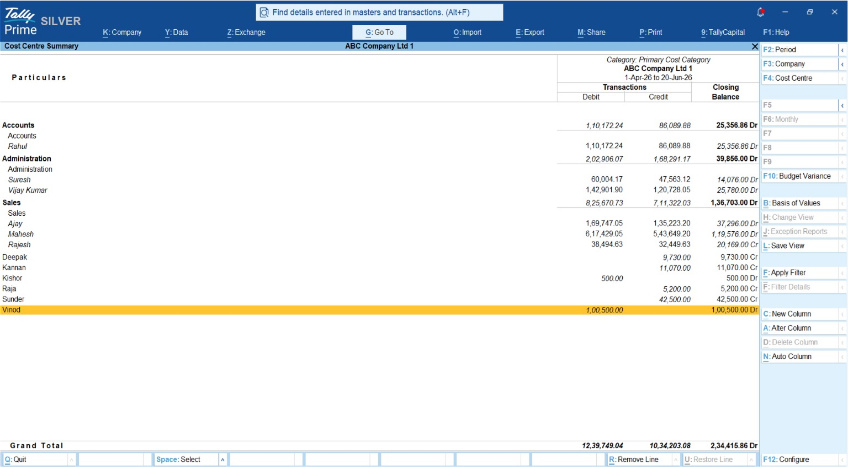
Can you track expenses across different dimensions simultaneously?
To track expenses from multiple angles simultaneously, such as knowing both what vertical spent the money and which geography it occurred in, we use Cost Categories for "Parallel Allocation."
Technical Setup: Navigate to Gateway of Tally > Create > Cost Category and configure:
- Allocate revenue items: Set to Yes to track Profit & Loss items (Sales, Expenses).
- Allocate non-revenue items: Set to Yes to track Balance Sheet items (Capital, Fixed Assets).
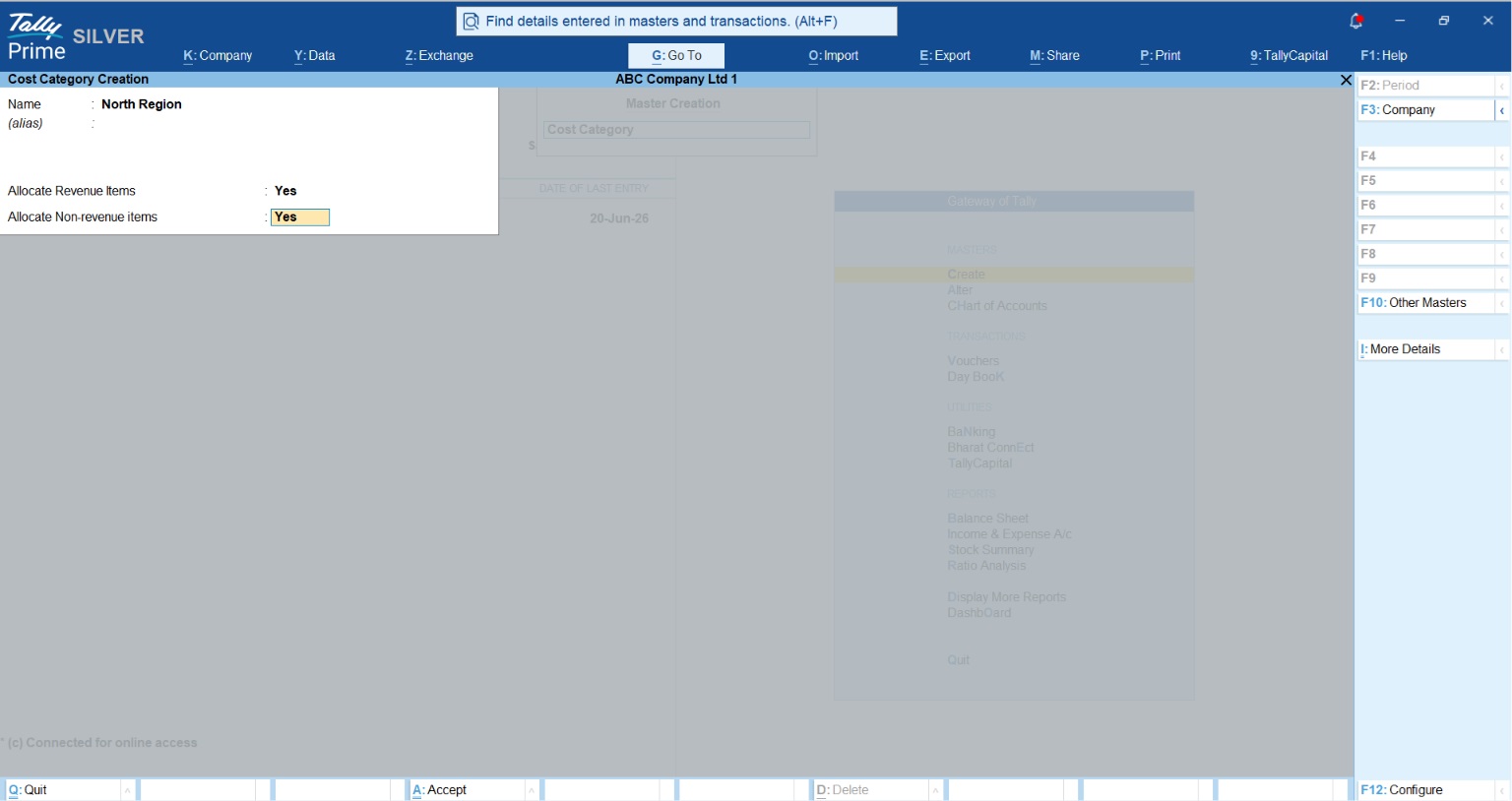
Practical scenario: Imagine a single marketing expense. With parallel allocation, you can tag that transaction to a "Vertical" category (Retail vs. Wholesale) and a "Geography" category (North vs. South) at the same time. This provides a multi-dimensional view without duplicating ledgers.
Is there a way to automate these allocations?
Assigning costs manually for every entry is a recipe for error. You can automate this using Cost Centre Classes, which apply predefined percentage splits during voucher entry.
The logic: Allocation to Cost Centre = V x (P_i / 100), where V is the voucher value and P is your predefined percentage.
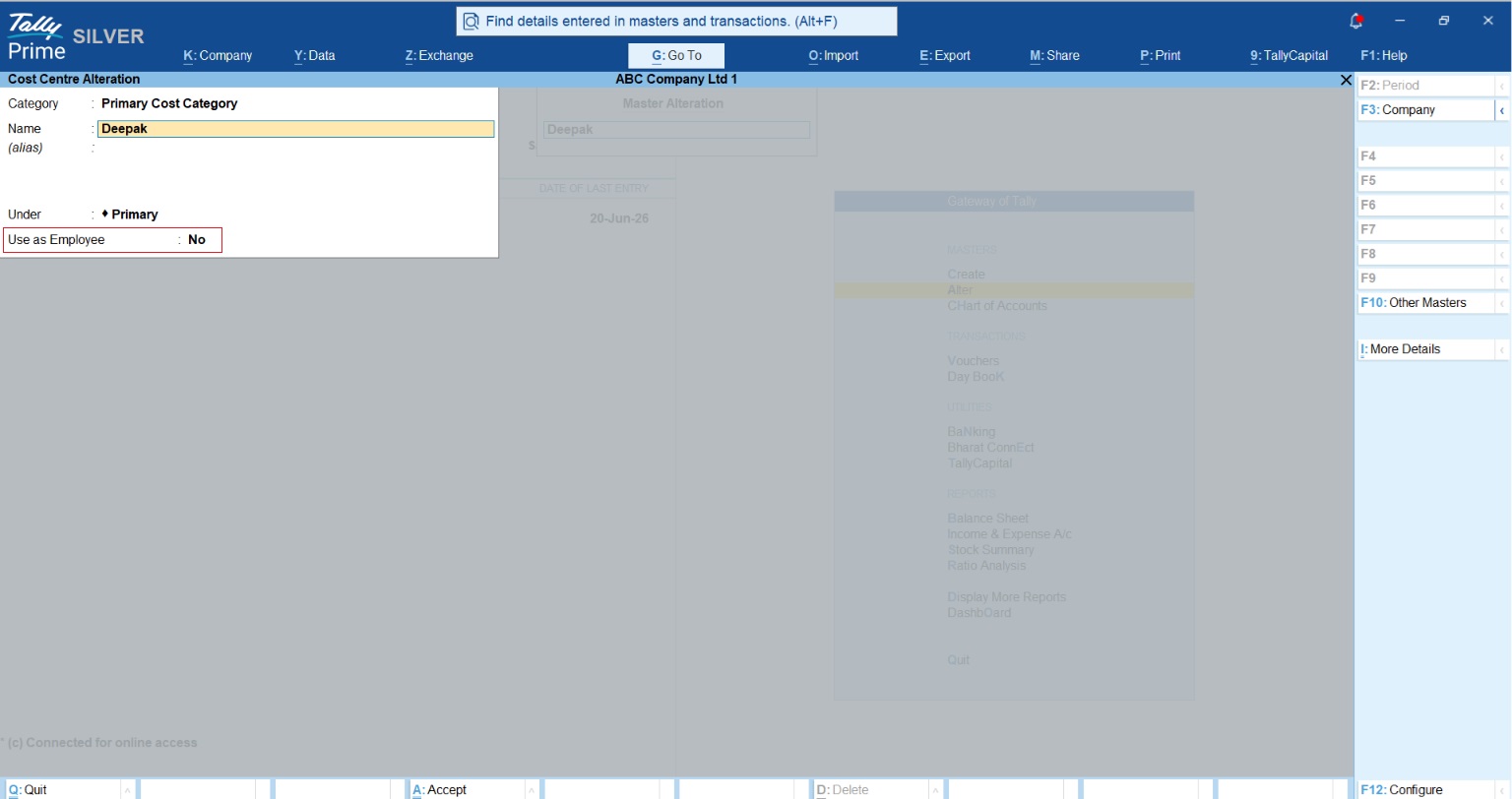
Pro-tip from the field: If a Cost Centre has the option "Use as Employee" enabled, it will not appear in the selection list for Cost Centre Classes. This is a security feature to protect sensitive payroll data. If your staff serve as operational cost centres for automation, ensure they are created as standard units.
How do you handle taxes and stock across different states?
Managing multi-state operations within one file requires a blend of Multi-GSTIN architecture and Job Costing modules.
Steps for implementation:
- Activate multi-GSTIN: In F11 (Features), add another GST Registration from enable goods and service tax (GST) section
- Voucher series: Create distinct numbering series for each GST registration to ensure statutory compliance.
- Inventory integration: Enable Job Costing in F11. In the Cost Centre master, set "Use for job costing" to Yes.
- Link godowns: Create Godowns for each vertical and link them to their respective Cost Centres under the Job Costing options.
The CA's compliance note: Remember the "Supply of Goods" rule. Intra-state branch transfers (same GSTIN) are non-taxable. However, inter-state transfers between different GSTINs are treated as a supply. You must issue a formal tax invoice with GST calculations and e-way bills to ensure the receiving branch can claim the Input Tax Credit (ITC).

How to manage reporting for multiple business verticals in TallyPrime?
Reporting for different business verticals means breaking down your overall financial statement into individual profit-and-loss views for each division. For example, which among New Car Sales and the Service Workshop is generating profits and which one is consuming resources.
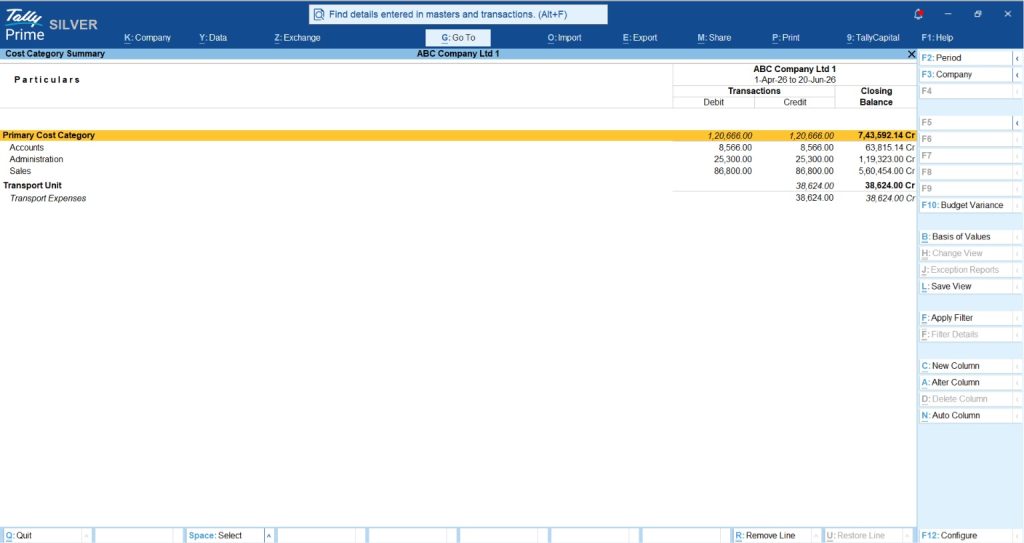
TallyPrime provides several paths for granular analysis. Follow these breadcrumbs: Gateway of Tally > Display More Reports > Statements of Accounts > Cost Centres
- Category summary: High-level view of all category totals.
- Cost centre break-up: Ledger-wise view for a specific vertical.
- Ledger break-up: Shows how one ledger (like Electricity) is split across divisions.
- Group break-up: Shows how an entire ledger group (like Direct Expenses) is allocated.
Comparative analysis: Use the "Auto Column" (Alt+N) feature within these reports to generate a side-by-side comparative view of all verticals. To track gross margins, navigate to the Sales Register, drill down into a month, and press F7 (Show Profit) to see book costs and absolute gross margins in real time.
What common mistakes should you avoid during setup?
Most errors occur during data migration or imports. Refer to this table for quick fixes:
|
Common error |
Technical root cause |
Resolution protocol |
|
"Cost Break-up Total does not match" |
CC applicability is disabled or split total ≠ ledger total. |
Set "Cost centres are applicable" to Yes in the Ledger Master. |
|
"CC does not belong to Category" |
Mismatch in classification between source and destination. |
Reassign the centre to the correct standardized Category in alteration mode. |
|
"Cost Category does not Exist" |
Category name missing or renamed in the destination file. |
Create the missing Category, ensuring the name matches the source exactly. |
"Moving from fragmented files to a dimensional matrix in TallyPrime isn't just about accounting; it's about gaining the real-time clarity needed to scale."
Read More About What is Cost Centre – Types, Purpose & Examples
Your actionable checklist
- Blueprint the hierarchy: Map your parent-child cost centre relationships first.
- Enable features: Activate Cost Centres and Job Costing.
- Configure categories: Set up "Revenue" and "Non-Revenue" parameters.
- Multi-GSTIN setup: Define registrations and unique voucher series.
Opening balance reconciliation:
When splitting or migrating data, you must reconcile vertical balances. Use the Clearing Ledger Method:
- Create a temporary "Adjustment Account" (Group: Loans & Advances - Asset) with Cost Centres disabled.
- Enter the total opening balance here.
- Post a Journal Voucher debiting the primary ledger (allocating to Cost Centres) and crediting the Adjustment Account.
- Verify the formula: Clearance Ledger Balance = Opening Balance - Cost Centre Allocations = 0.