






What is scenario?
A scenario could be defined as a description of a possible set of events that might reasonably take place. The primary purpose of developing scenarios is to stimulate thinking about possible occurrences, assumptions relating these occurrences, possible opportunities and risks, and courses of action.
Scenario management – A diagrammatic Understanding
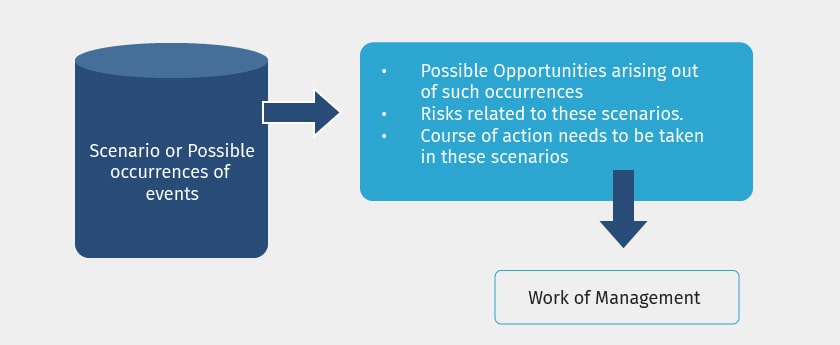
Scenario management in accounting world
It is a management tool that enables different displays of accounts and inventory related information, by selectively including certain types of vouchers without affecting the source data. Managing scenarios is useful in generating provisional reports, where entries are not actually made in the main books. It is also a useful forecasting tool i.e. we can forecast the expenses using provisional Vouchers and include them in your reports.
The following vouchers used in Scenario Management are:
- Optional Vouchers
- Memorandum Vouchers
- Reversing Journals
|
Update: TallyPrime is the latest version of Tally. Simplicity, speed, flexibility, and reliability are a trademark of Tally products and with TallyPrime you will experience them at a whole new level. You can multitask without losing the progress, navigate and discover the product much easier, invoice with amazing simplicity and much more to delight you. Read ' 5 Things in TallyPrime for Enhanced Business Efficiency to know how TallyPrime helps your business. Also, take a look at a list of how-to videos on TallyPrime |
To create a scenario in TallyPrime
|
Step 1 |
Set Use Reversing Journals & Optional Vouchers in F11 : F1: Accounting Features to Yes. |
|
Step 2 |
Go to Gateway of Tally > Accounts Info. > Scenario > Create |
|
Step 3 |
Give a suitable name to the scenario. |
|
Step 4 |
Set Include Actuals to Yes |
|
Step 5 |
· Set Exclude Forex Gains/Losses Calculations to Yes if you do not want the Unadjusted Forex Gain/Loss element to appear in the scenario. · Set Exclude tracking of inventory calculations to Yes if you do not want the Sales/Purchase Bills Pending element to appear in the scenario. |
|
Step 6 |
Include: From the list of available vouchers, include the type of vouchers required. Here we have to take care to pick up the Voucher Types created for the company for which scenario is being prepared. Regular and Provisional Vouchers that are marked Optional are permitted for selection. Exclude: From the list of available vouchers, exclude vouchers that are already included in the type of vouchers that you do not want to affect this scenario. This is used in Alter mode and hence is discussed under Alter/Display Scenario Information. |
|
Step 7 |
Accept to create this scenario. |
To alter a scenario in TallyPrime
|
Step 1 |
Go to Gateway of Tally > Accounts Info > Scenario > Alter |
|
Step 2 |
Select the scenario to alter from the List of Scenarios. The information given while creating the scenario displays and you can alter it. (or) Exclude: Use the mode “ Alter”, when you do not want a selected included voucher to affect the scenario, anymore. This way it is easier to put the selected voucher in the Exclude List, rather than to remove it from the Include List. |
Tally’s reversing journals in scenarios
One has to follow these steps listed below to create a Reversing Journal Entry for the scenario already created.
Go to Gateway of Tally > Accounting Vouchers > F10: Reversing Journal
- Select Reversing Journals from the list.
- Debit Depreciation and enter the amount
- Credit Provision for Depreciation
- Enter narration if any
- Accept the voucher.
Using scenarios in sales forecast report
In TallyPrime we can use scenarios to tap sales forecast report. To use scenarios in sales forecast report follow these steps:
|
Step 1 |
Create a new Scenario and name it. Since we are going to use the scenario for sales forecast let us name it as Sales Forecasts. |
|
Step 2 |
Include Sales Vouchers Optional Only. |
|
Step 3 |
Create 12 Sales Vouchers, one in each month. Remember to mark them Optional. |
|
Step 4 |
View the Sales Accounts by drilling down the Profit & Loss A/c. |
|
Step 5 |
Bring up New Columns and limit each column date range to the following month. The Sales forecast figures must display. |