






Most invoice customisations and personalisations stop at "add a logo." But businesses often need invoices that reflect their brand identity, capture industry-specific information, and meet compliance requirements. This is where the ability to create an invoice template tailored to your business becomes valuable.
In TallyPrime, selecting one of the invoice templates is only the starting point. You can further personalise invoice templates by controlling which fields appear, adding watermarks, inserting header and footer images, capturing additional business information, modifying fonts and colours, formatting individual fields, and configuring print, export, and sharing preferences. These personalisation options help businesses create professional invoices that align with their operational and branding needs while maintaining accuracy and compliance.
Whether you want a cleaner invoice layout, need to include customer-specific details, or wish to standardise invoice formats across multiple companies and voucher types, TallyPrime offers extensive flexibility to achieve your desired invoices.
In this guide, we will explore how to create and personalise invoices in TallyPrime, including field-level personalisation, branding enhancements, template reuse, pre-printed stationery settings, practical business use cases, and the mandatory GST fields that every custom invoice format must retain.
How to create and personalise an invoice template in TallyPrime
Before you start personalising, choose a template that closely matches your business requirements. TallyPrime’s latest release offers multiple invoice templates, including layouts designed for businesses that operate multiple brands, maintain multiple registered offices, or prefer a traditional invoice format.
Choose the right invoice template for your business
Selecting with the right invoice template reduces the amount of changes required later. TallyPrime features multiple invoice templates that you can personalise based on your business needs. From a minimalist layout to a structured and detailed invoice, or a multi-logo branding, or a multi-address support, there are multiple options you can choose from. You may need different invoice formats to share with different customers or clients and you can find all variations on TallyPrime.
Use Case:
A distributor selling products from three brands starts with the Multi-Logo template, ensuring enough space for all brand identities before adding any further customisations.
Let’s look at how to personalise invoices for your business requirements.
Show only the information that matters on your invoice
Not every business needs the same invoice details. TallyPrime allows you to decide exactly which fields appear on your invoices.
Add or Remove Invoice Fields
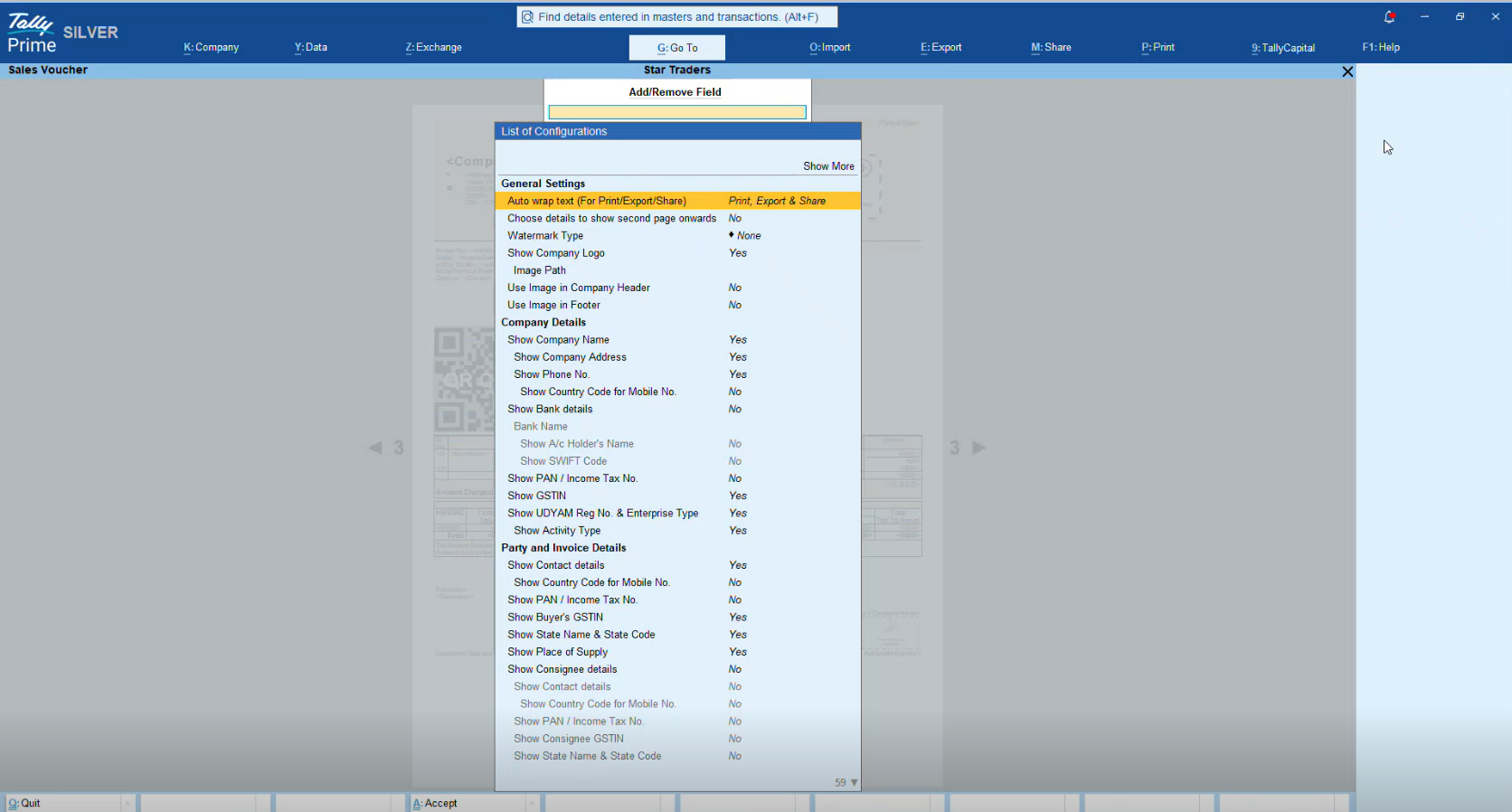
Different businesses require different information on their invoices. For example, a wholesaler may need banking information, transporter details, and customer contact information, while a retail store may prefer a cleaner invoice focused only on transaction details. TallyPrime allows you to control which standard fields appear on your invoice through the Add/Remove Field option.
You can enable or disable standard fields such as Bank Details, Contact Information, and other business-specific details. This flexibility helps create invoice formats tailored to specific customer segments, business units, or transaction types while keeping the document uncluttered and easy to read.
Use Case:
A B2B supplier displays Bank Details to simplify direct transfers, while a retail store hides them because customers typically pay immediately.
Add your brand identity to invoice templates
A professional invoice should reflect your business identity. TallyPrime provides multiple ways to enhance branding beyond simply adding a logo.
Add a watermark
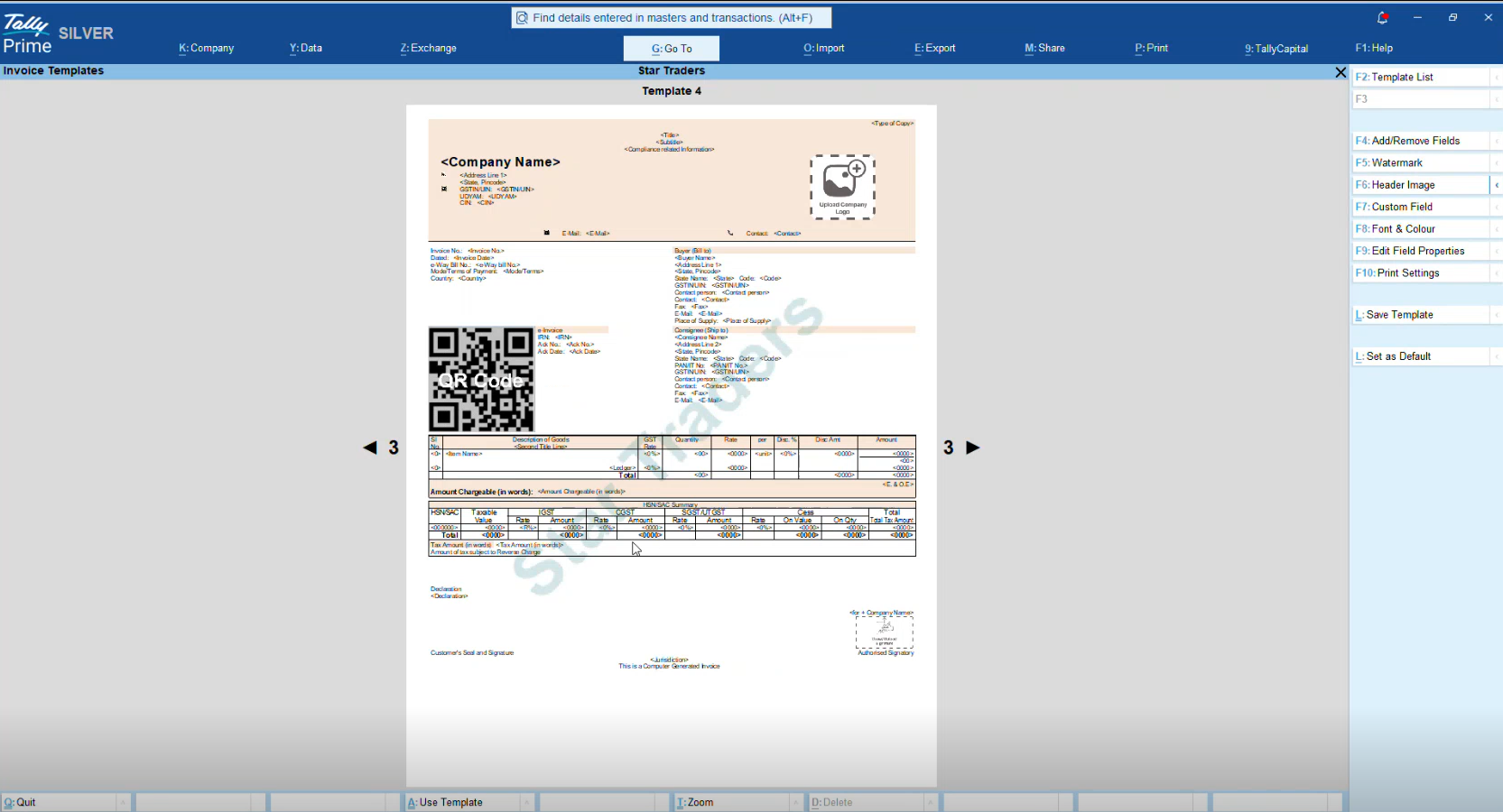
Watermarks can help communicate the status or purpose of an invoice without altering the invoice content itself. They provide a visual indicator that can be recognized instantly by customers, internal teams, auditors, or other stakeholders.
TallyPrime allows you to add either text-based or image-based watermarks and customise their position, transparency, size, and orientation.
You can create watermarks such as Draft, Cancelled, Original, Duplicate, or Confidential. This is especially useful when multiple versions of an invoice are circulated during approval, review, or compliance processes. Since the watermark becomes part of the invoice template, consistency is maintained across all generated invoices.
Use case:
A consulting firm marks review invoices as "Draft" until client approval is received.
Add a header image
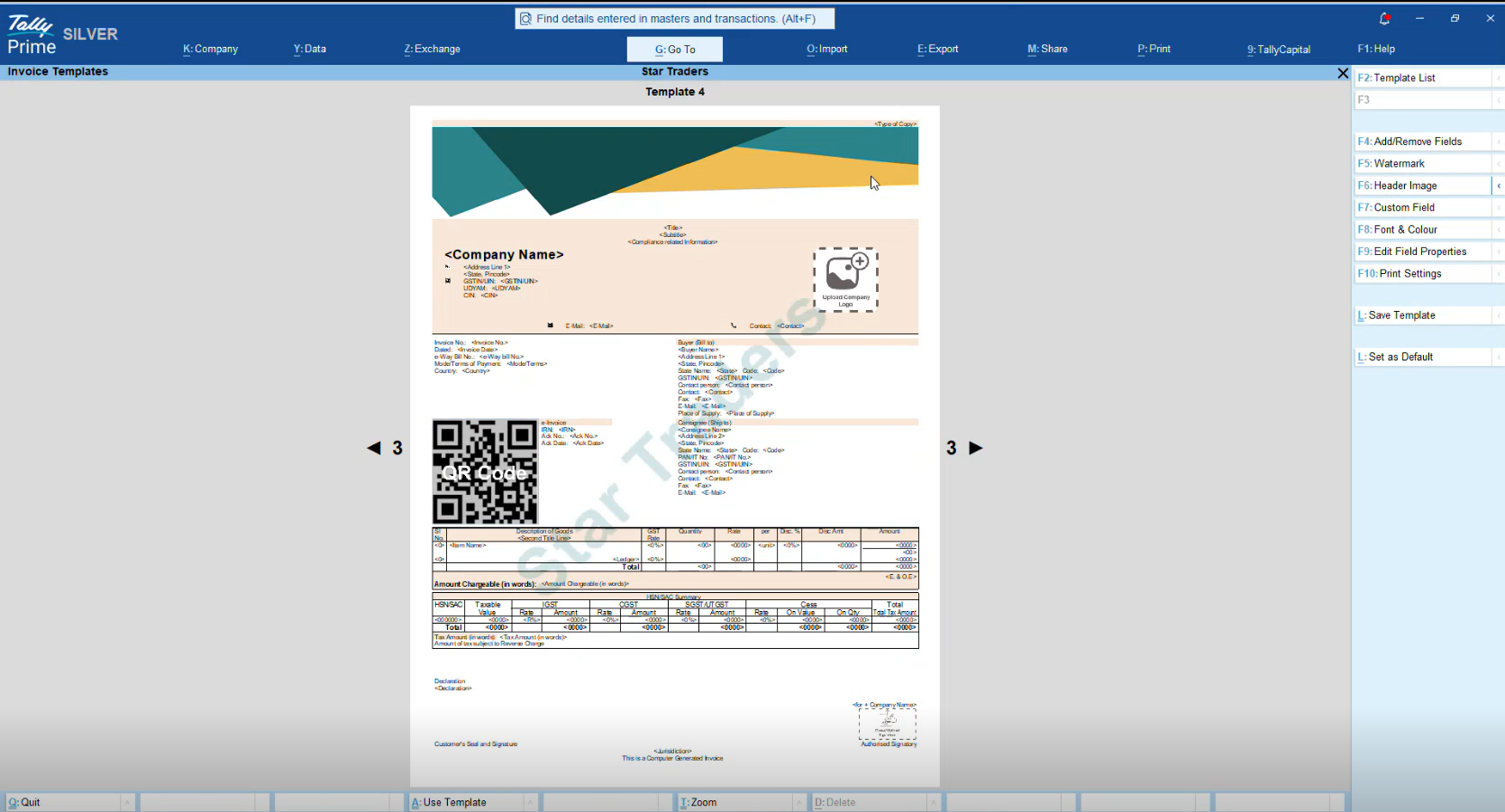
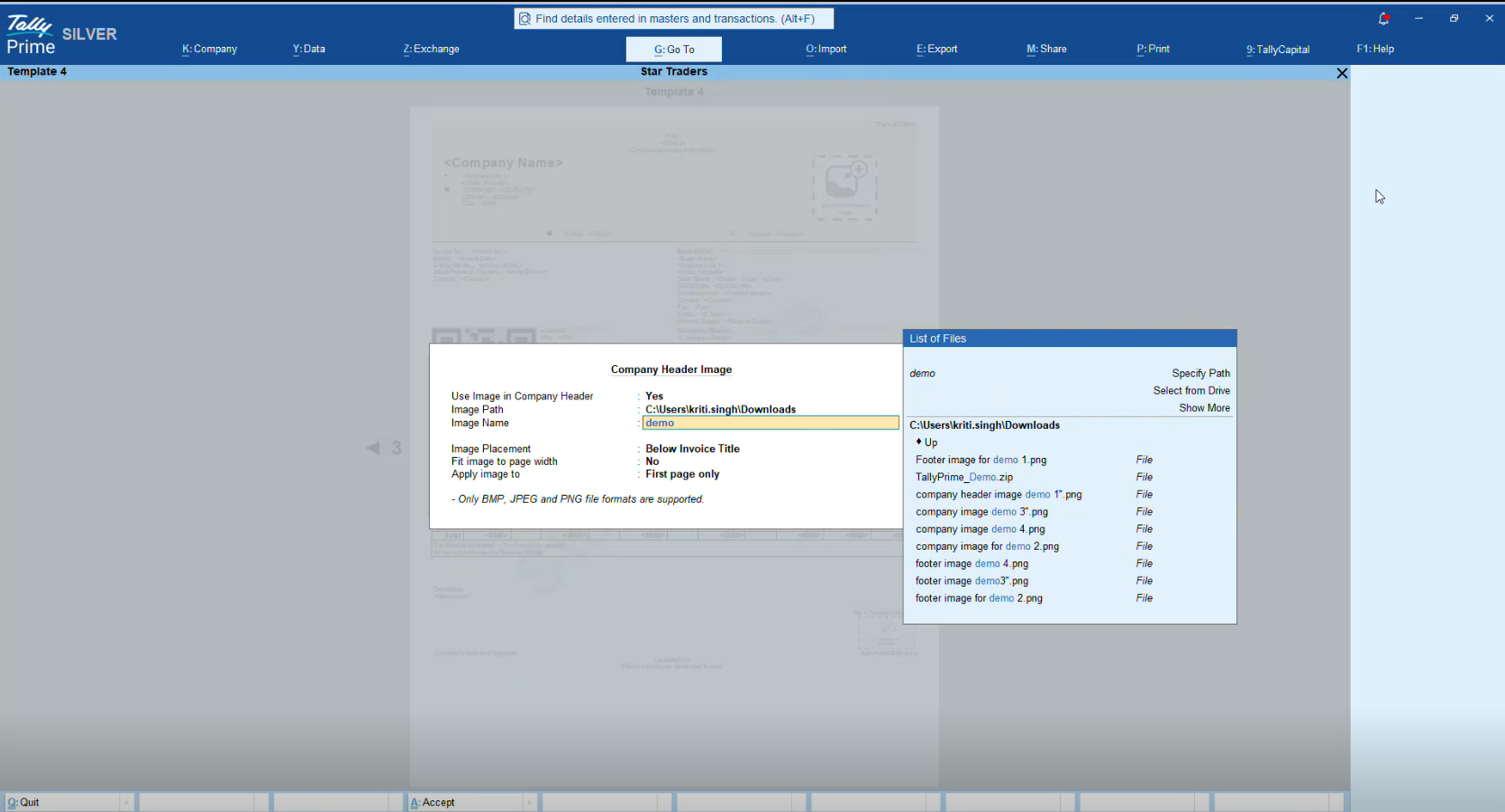
You can place a banner or image above or below the invoice title and choose whether it appears on the first page or every page.
You can configure the header image for Image Placement, Apply Images to Pages, and Fit image to page width as shown in the below image.
Use case:
A retail business adds festive campaign banners during seasonal promotions.
Add a footer image
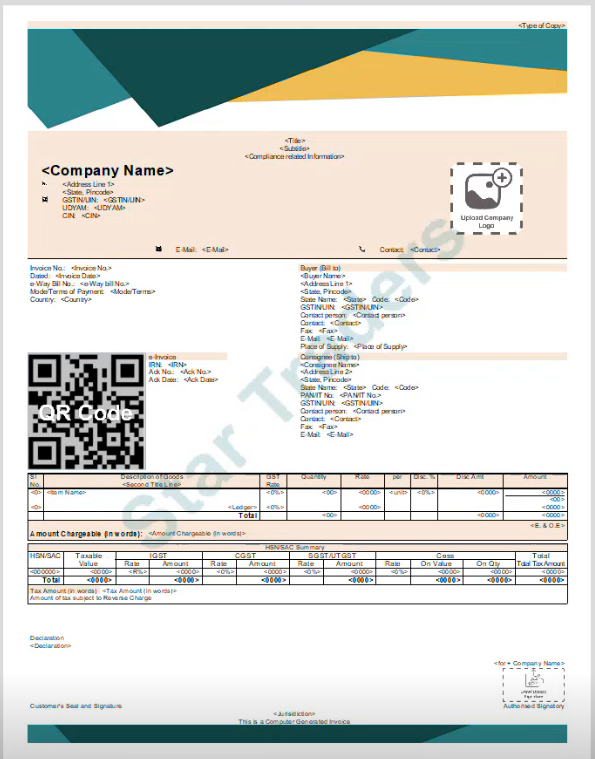
You can add warranty information, promotional messages, or customer instructions at the bottom of invoices.
Use case:
A manufacturer includes warranty and product-care instructions directly on every invoice.
Add your company logo
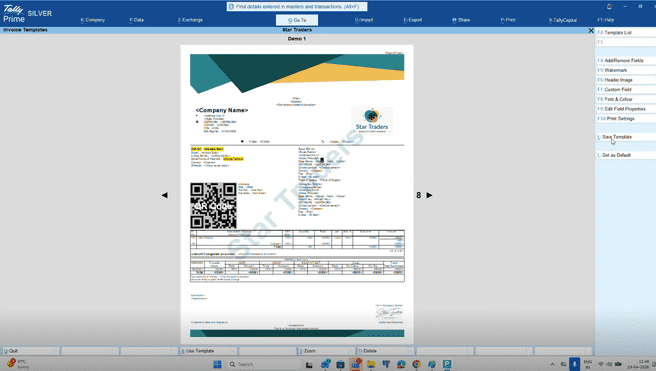
A company logo is one of the most recognizable elements of any business document. Including it on invoices helps reinforce brand identity while giving invoices a professional and trustworthy appearance. In many industries, customers also expect invoices to display the company's official branding.
TallyPrime allows you to add one or multiple logos depending on the template you choose.
For example, businesses operating multiple brands or product lines can use templates that support multiple logos, ensuring all relevant brand identities are represented on the same invoice. Once added, logos become part of the template and automatically appear on every invoice generated using that format.
Adding a logo not only enhances presentation but also helps create consistency across invoices, quotations, delivery notes, and other business documents.
Use Case:
A consumer goods distributor representing three different brands uses a multi-logo invoice template so that customers can immediately identify the products and brands being billed.
Add business-specific terms and conditions
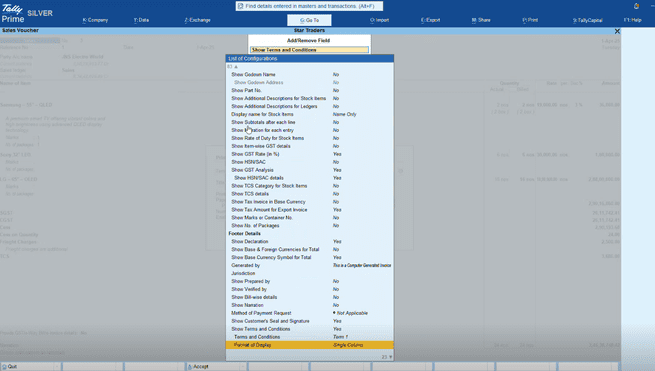
Invoices often serve as more than payment documents. They can also communicate important business policies, payment terms, warranty information, return conditions, delivery commitments, and legal disclaimers. Including these details directly on the invoice helps reduce misunderstandings and ensures customers have access to important information whenever they refer to the document.
TallyPrime allows businesses to include personalized terms and conditions within invoice templates. Depending on the invoice layout and business requirements, these can be displayed in dedicated sections of the invoice so they appear consistently across all transactions.
Common examples include:
- Payment due dates and late-payment policies
- Warranty and service terms
- Return and replacement policies
- Delivery and transportation conditions
- Jurisdiction clauses
- Product-specific usage instructions
Adding terms and conditions to the invoice template eliminates the need to manually insert them for every transaction and helps ensure that all customers receive the same information. This is particularly useful for businesses handling high transaction volumes or operating across multiple locations.
Use Case:
A manufacturing company includes warranty coverage terms and product handling instructions on every invoice, ensuring customers always receive the information alongside their purchase documentation.
Capture additional business information with custom fields
Standard invoice formats may not always capture industry-specific information. Businesses in sectors such as food processing, pharmaceuticals, logistics, manufacturing, and exports often need additional identifiers, license numbers, or shipment-related information to appear on invoices. TallyPrime addresses this requirement through Custom Fields.
Add company-level and invoice-level custom fields
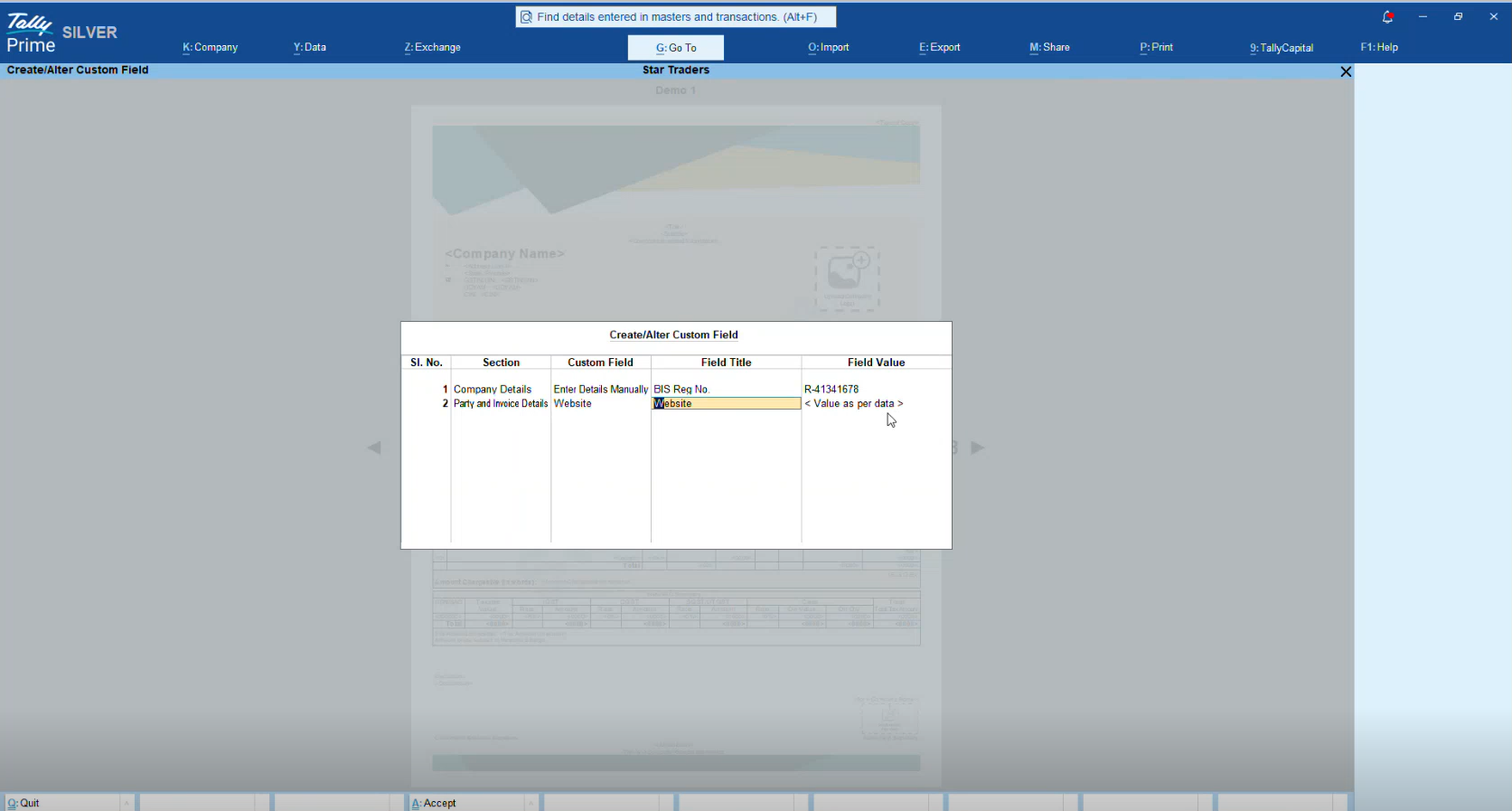
Using F7 (Custom Field), you can add:
- Company-level fields that appear on every invoice
- Invoice-level fields that pull information from voucher entries
This ensures important information is captured consistently without requiring manual edits each time an invoice is generated. Custom fields can also improve operational efficiency by reducing dependency on separate documentation.
Field labels can contain up to 150 characters, while values can contain up to 251 characters.
Use case:
A food business automatically prints its FSSAI licence number on every invoice, while a distributor displays the Carrier/Agent Name for each shipment.
Personalise fonts, colours, and invoice appearance
An invoice is often one of the most frequently shared business documents. Maintaining a consistent visual identity across invoices can strengthen brand recognition and create a more professional customer experience.
TallyPrime enables businesses to personalise the appearance of invoice templates by modifying fonts, colours, and overall design elements.
Change fonts and colours across the template
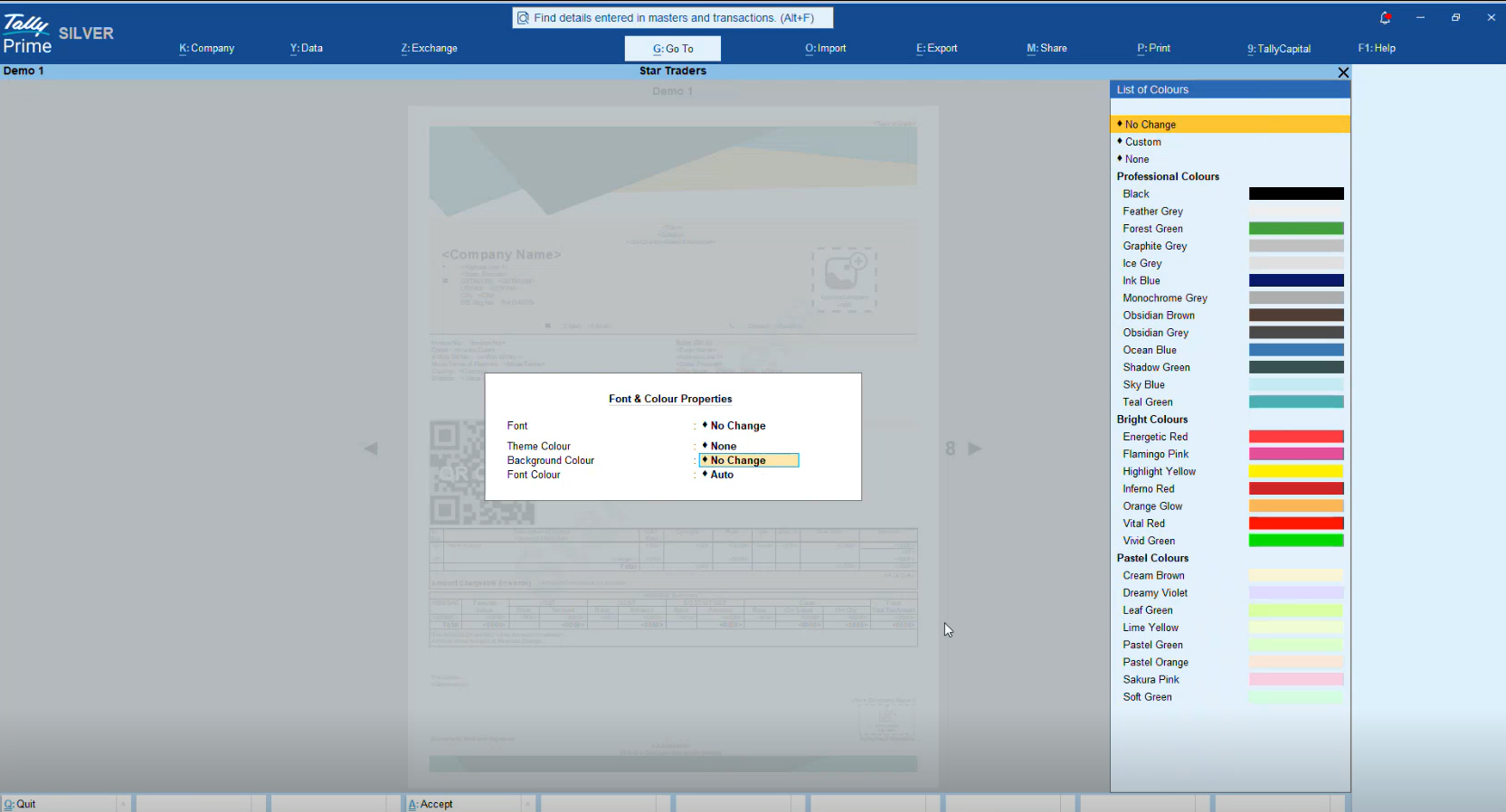
You can define template-wide settings for fonts, theme colours, background colours, and font colours. Businesses can either use predefined colour options, specify custom RGB values, or allow TallyPrime to automatically select readable colour combinations. You can configure:
- Font style
- Theme colour
- Background colour
- Font colour
Use case:
A company applies its corporate colours to section headers while keeping text colours automatically optimized for readability.
Format Individual Invoice Fields
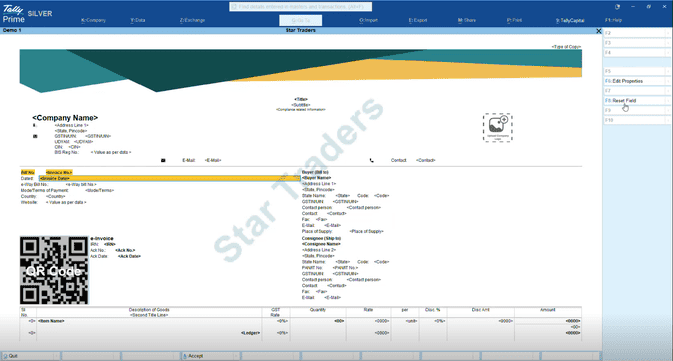
Need certain information to stand out? While template-wide formatting controls provide overall consistency, some information deserves additional emphasis. Important details such as payment due dates, invoice totals, GST amounts, or customer reference numbers may need to stand out from the rest of the invoice.
By drawing attention to critical information, businesses can improve invoice readability and reduce the chances of missed payment or compliance-related details.
You can modify individual fields without affecting the rest of the template.
Available formatting options include:
- Bold
- Italics
- Font size
- Colour
- Alignment
- Background colour
Use case:
A business highlights the Due Date field to improve payment visibility.
Configure invoice printing, exporting, and sharing
Modern businesses share invoices through multiple channels, including printed copies, email, PDF exports, and messaging platforms such as WhatsApp. Maintaining consistency across these channels is important for professionalism, branding, and customer experience. Instead of configuring each output method separately every time an invoice is generated, TallyPrime allows businesses to standardize these settings at the template level
Manage print, email, export, and WhatsApp preferences
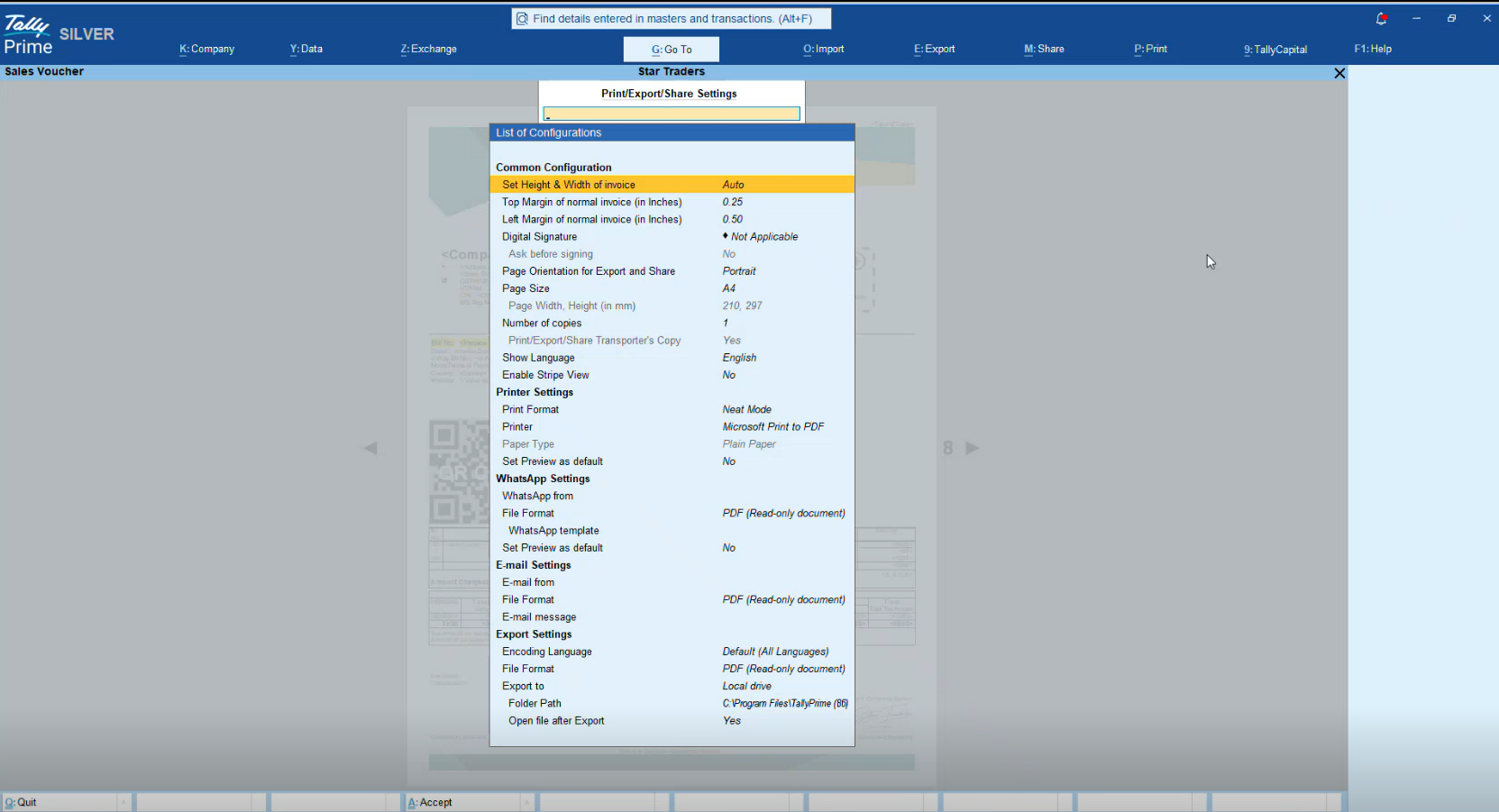
You can manage all output preferences from a single screen and configure how invoices are printed, exported, emailed, or shared through WhatsApp from a single consolidated screen. This ensures that invoices generated from a particular template follow the same output settings, regardless of who creates or sends them.
This is especially useful for companies with multiple users, departments, or branches, where maintaining a consistent customer-facing document is essential. By defining these preferences once, teams can reduce manual effort, minimize errors, and ensure every invoice follows the same communication standards.
Use case:
A business standardizes outgoing invoice emails by configuring a common sender address across departments, ensuring every customer receives invoices from the same official business email.
Save and reuse invoice templates across companies
Creating a personalised invoice template often involves multiple design, branding, and compliance-related changes. Once the ideal format is ready, businesses should be able to reuse it without repeating the process.
TallyPrime allows users to save invoice templates and deploy them across companies, helping maintain consistency while reducing setup time.
Save an Invoice Template for Future Use
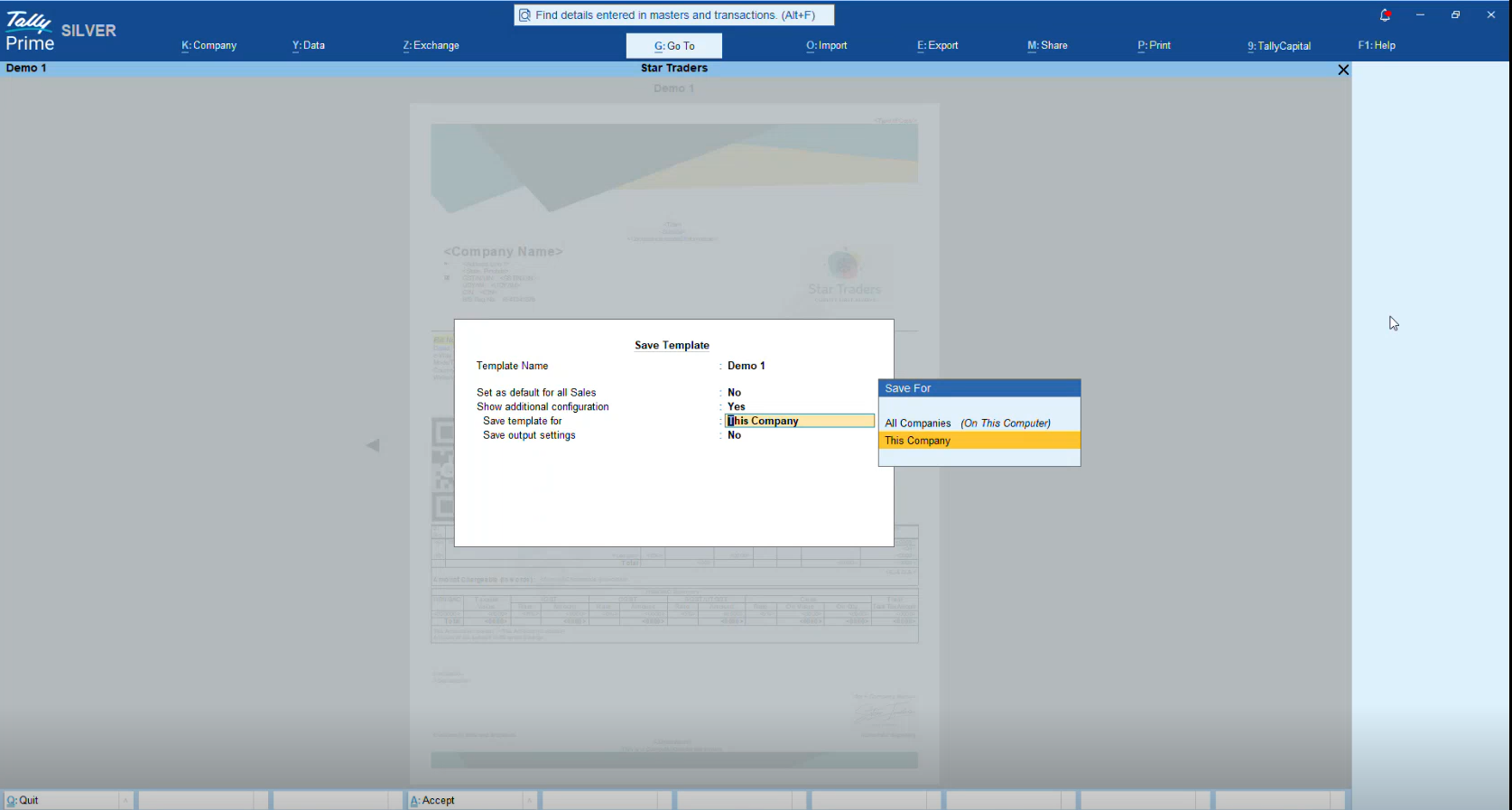
After completing your invoice personalisation, save the template for future use. You can assign a meaningful template name, designate it as the default invoice format, and choose whether it should be available only for the current company or for all companies operating on the same system. You can:
- Name the template
- Set it as default
- Save it for a specific company or all companies on the computer
This functionality is particularly useful for businesses that manage multiple entities, branches, or business units. Instead of recreating the same invoice format repeatedly, teams can simply reuse the saved template and maintain a consistent customer experience across locations.
Use case:
A multi-branch business saves a common invoice format for all companies to maintain consistent branding, invoice structure, and communication standards.
Set different default templates for different voucher types
Many businesses require more than one invoice format. For example, they may use separate layouts for retail sales, wholesale transactions, exports, branch-specific operations, or seasonal campaigns. TallyPrime allows businesses to assign different default templates based on voucher types, making it easier to manage multiple invoice formats without manual intervention.
You can quickly switch the active default template from the Invoice Templates screen. For a more permanent setup, you can assign a specific template to a voucher type.
This flexibility ensures that the correct invoice format is automatically selected whenever a transaction is recorded under a particular voucher category.
Use case:
A business uses a festive-themed invoice during promotional campaigns while retaining a standard invoice design for regular sales transactions. Different voucher types automatically apply the appropriate template.
Print on pre-printed stationery without layout issues
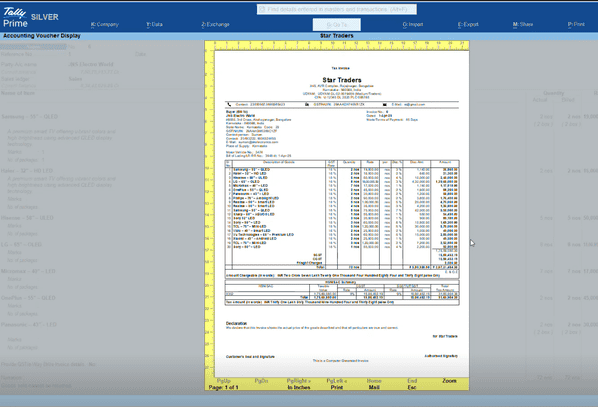
Many businesses continue to use branded letterheads, pre-printed invoice stationery, or government-approved invoice books as part of their documentation process. When printing invoices on such stationery, even minor alignment issues can result in important information overlapping with pre-printed logos, headers, signatures, or company details. This not only affects the professional appearance of the invoice but can also lead to wasted stationery and additional printing costs.
TallyPrime allows businesses to customise invoice dimensions and margins so that invoice content aligns accurately with their existing stationery format. Instead of modifying the stationery itself, businesses can adjust the invoice layout to fit the available printable area, ensuring a clean and professional output every time.
You can configure:
- Height
- Width
- Top Margin
- Bottom Margin
- Left Margin
- Right Margin
This flexibility is particularly useful for companies that want to retain their existing inventory of letterheads and invoice books while still benefiting from TallyPrime's invoice personalisation capabilities.
Use case:
A business prints invoices on company letterhead that already contains its logo, address, and contact details. By adjusting the top and left margins, it ensures invoice content begins below the pre-printed header, creating a professional layout without redesigning or reprinting stationery.
Try the TallyPrime Invoice Personalisation Demo here and get a hands-on experience.
Mandatory GST fields every custom invoice format must include
While personalisation offers flexibility, every GST invoice must remain compliant with statutory requirements.
Your custom invoice format should always retain:
- Supplier name, address, and GSTIN
- Unique invoice number
- Invoice date
- Recipient details and GSTIN/UIN (where applicable)
- Delivery address and state code for qualifying unregistered recipients
- HSN/SAC codes
- Description of goods or services
- Quantity and unit of measurement
- Total invoice value
- Taxable value
- GST rates
- CGST, SGST, or IGST amounts
- Place of supply
- Delivery address (if different)
- Reverse charge applicability
- Signature or digital signature
Additional Requirement for E-Invoicing
Businesses crossing the notified e-invoicing threshold must register invoices through the Invoice Registration Portal (IRP) and print the generated QR code on the invoice shared with customers.
Although TallyPrime's pre-defined invoice templates are designed around statutory requirements, features such as Add/Remove Field and Edit Field Properties make it possible to hide or reformat information. Therefore, after significant personalisation, always verify that your invoice remains GST compliant and consult your GST practitioner where necessary.